MCP Server
Claude Code
Introduction
Claude Code is an AI coding assistant that can connect Claude to the QuantConnect MCP Server. This page explains how to set up and use the server with the Claude Code and the Claude Code extension in Local Platform.
Getting Started
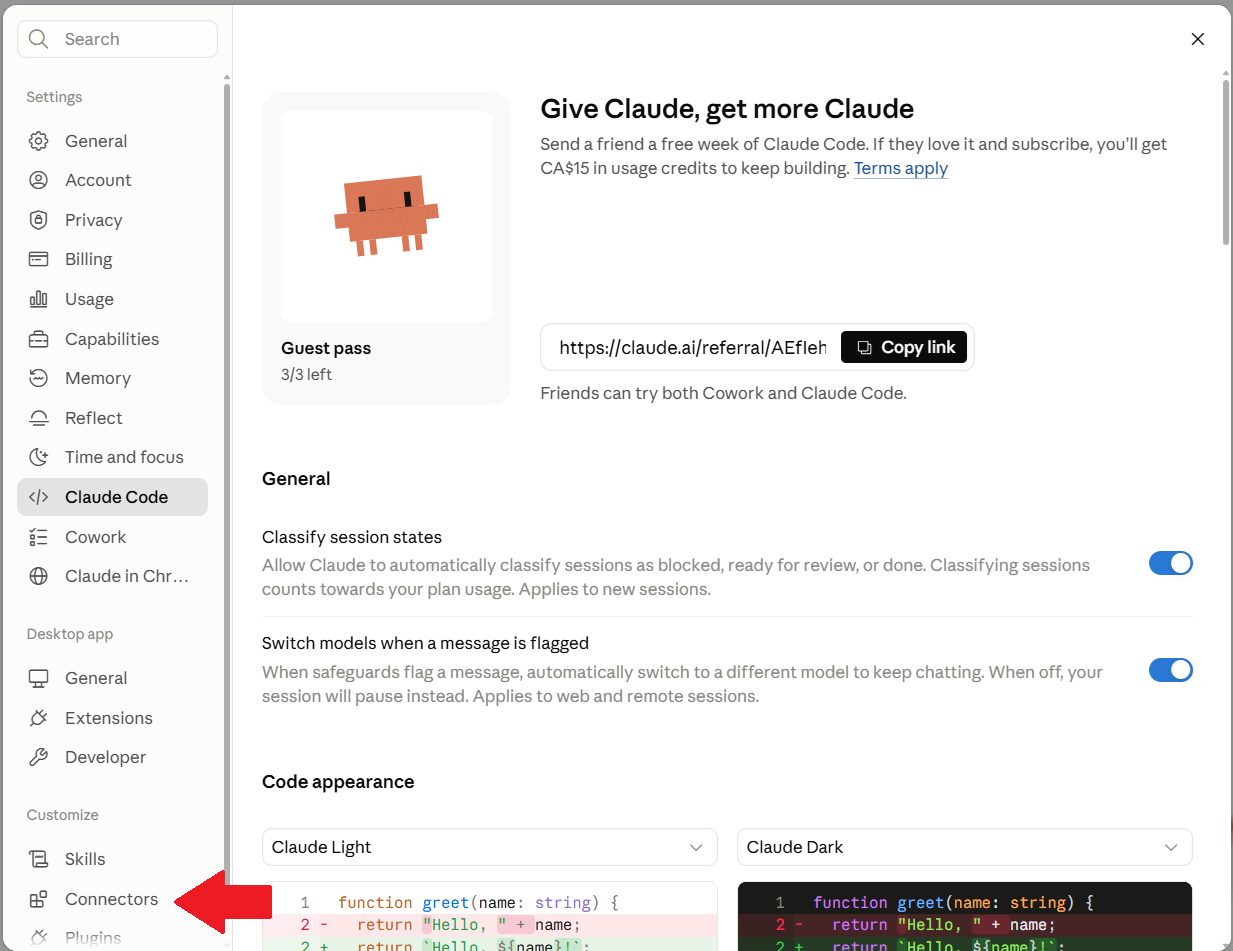
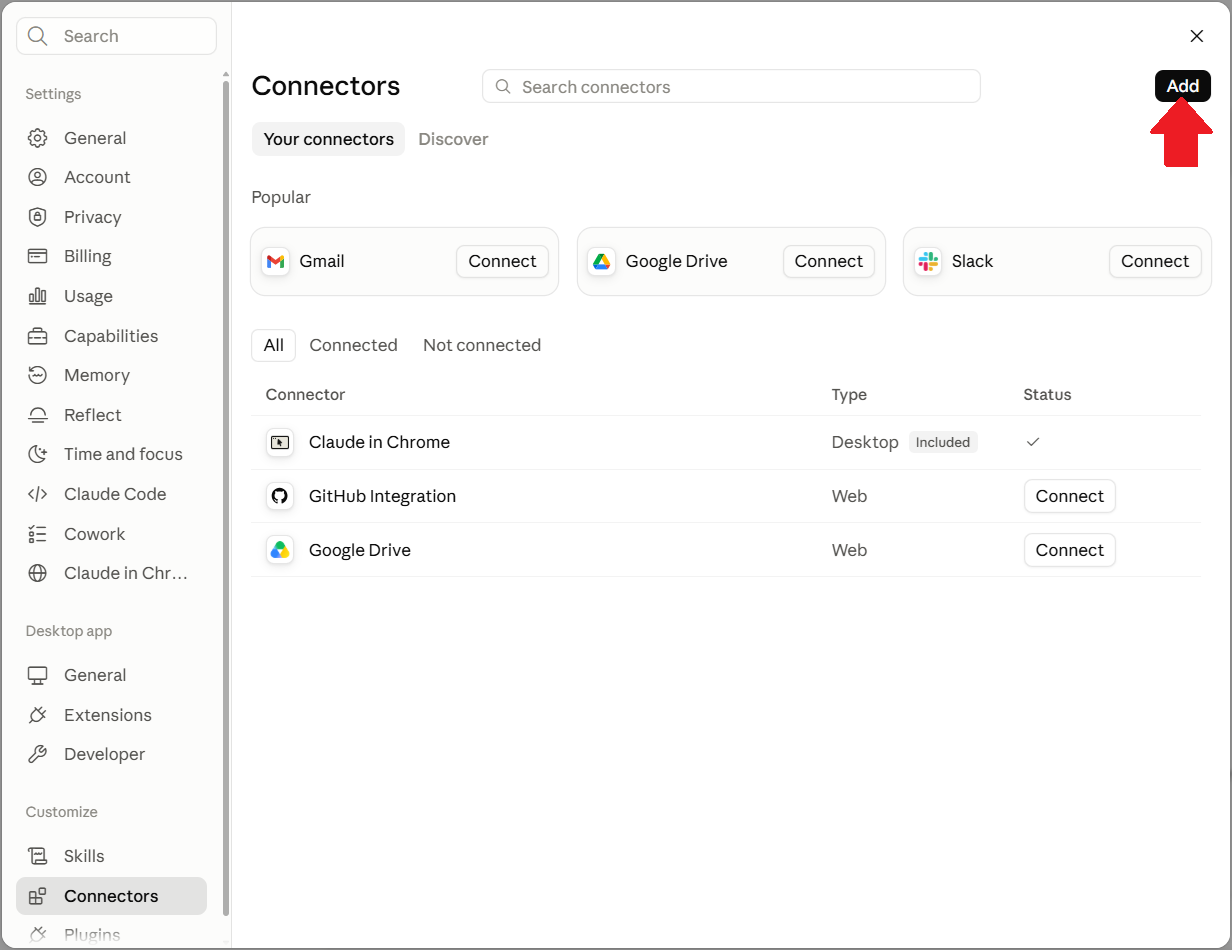
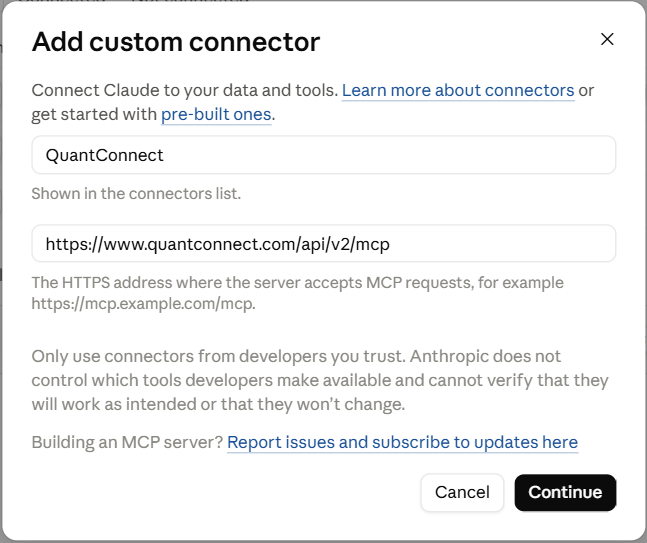
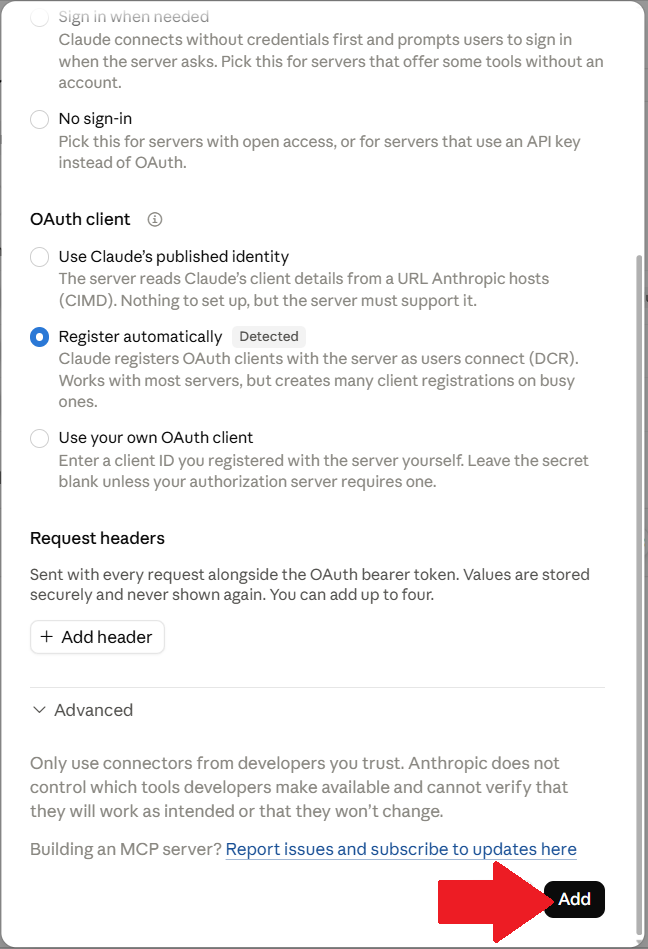
To connect Claude Code to the QC MCP Server, follow these steps:
- Open Claude Code.
- Click the menu icon in the top-left corner and then click .
- On the Settings page, click .
- On the Connectors page, click .
- On the Add Custom Connector page, enter a name for the connector, enter the MCP server URL (https://www.quantconnect.com/api/v2/mcp), and then click .
- On the confirmation page, click .
- On the Connectors page, click .
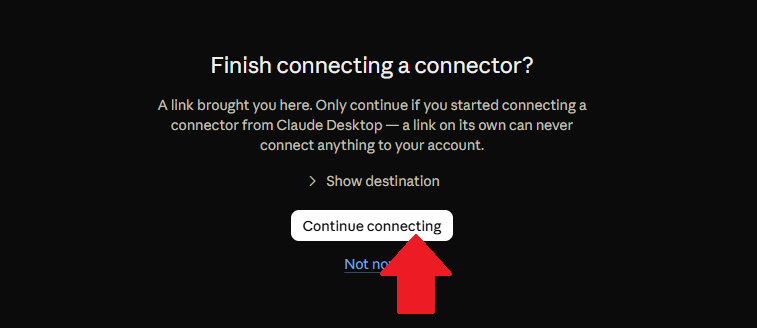
- In the browser page that opens, click .
- In the Authorize MCP Server form, select the organization you want to connect to and then click .
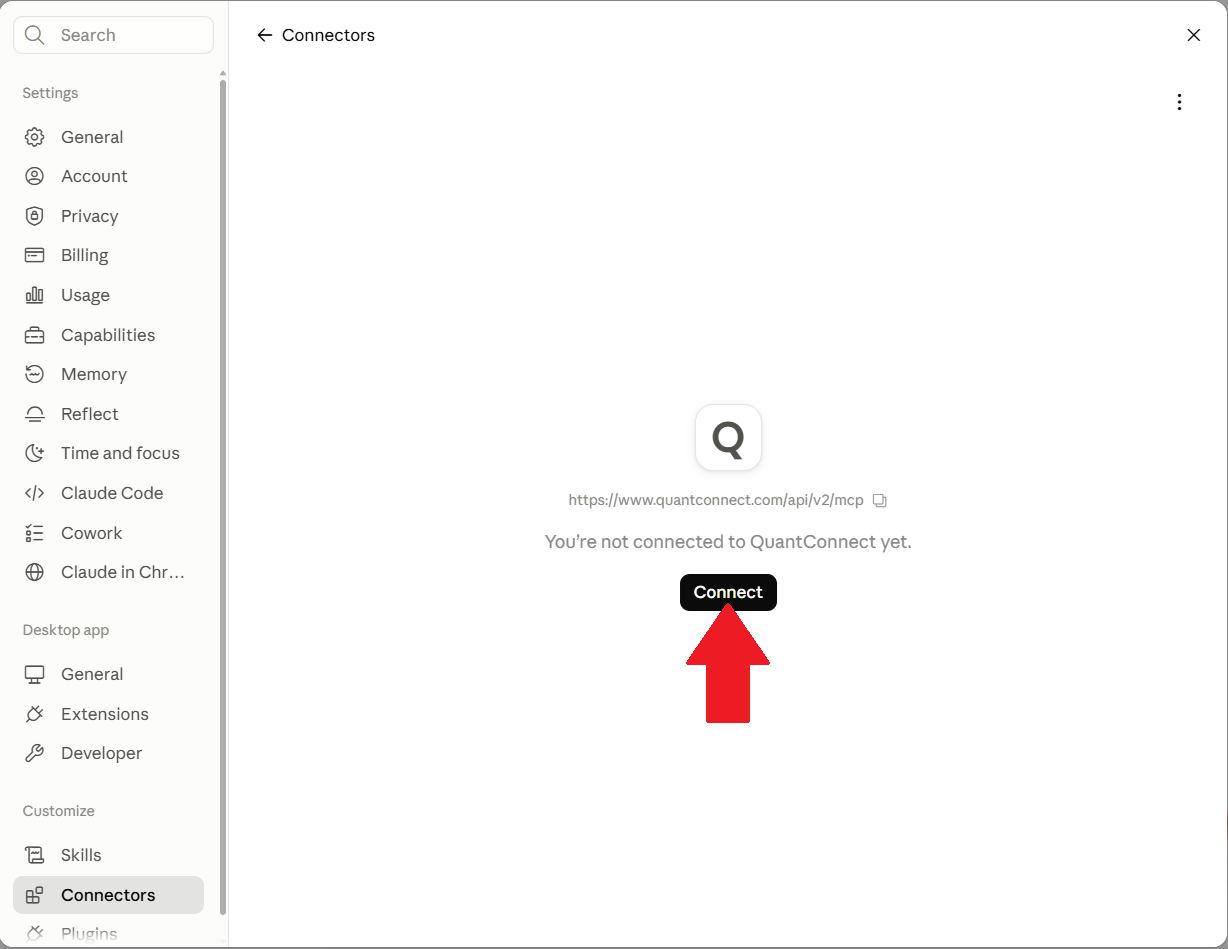
It opens a page in your default browser. If you sign into your QuantConnect account with a different browser, update your computer's default browser application and then repeat these steps.

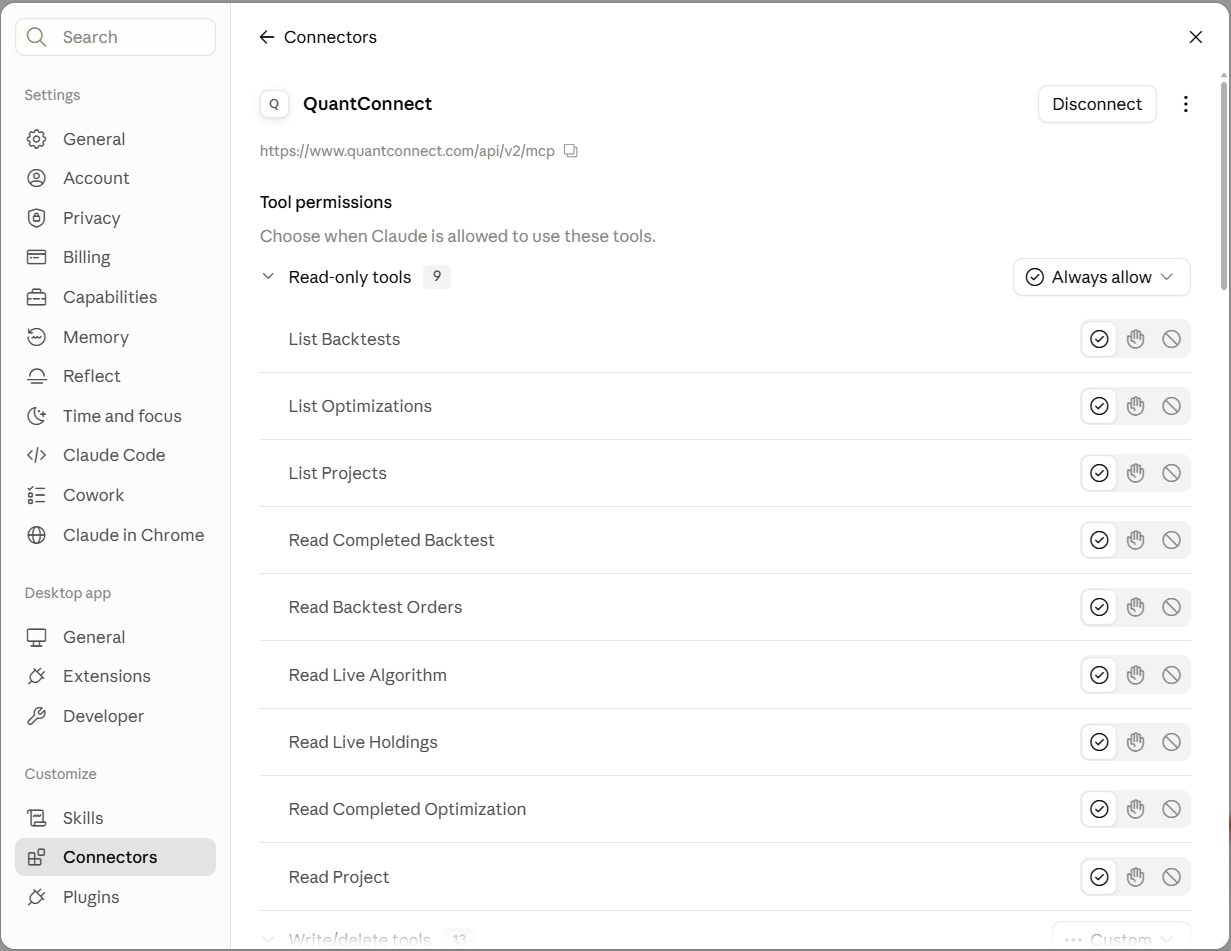
Claude Code should now show all the tools available through the QuantConnect MCP Server.
To connect Claude Code in Local Platform to the QC MCP Server, follow these steps:
- In Local Platform, install the Claude Code extension.
- Create a new project or open an existing one.
- In the top navigation bar, click the
 Claude Code icon.
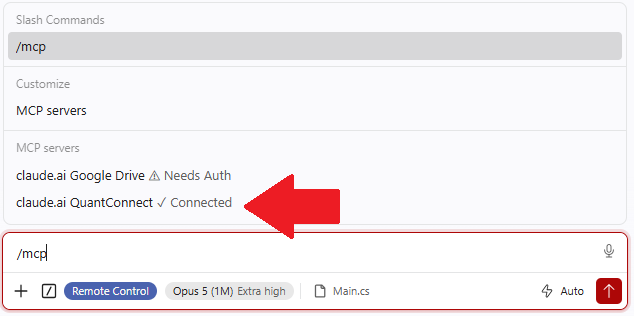
 - In the Claude Code panel, enter /mcp.
It should show the the QuantConnect MCP Server is connected.
Tailor Behavior
The CLAUDE.md file is a special file that tailors how Claude behaves during your conversations.
When you run claude to start a new conversation, Claude automatically pulls the CLAUDE.md file into context.
To find the file, it checks your home directory (~ / .claude /) and it checks the current, parent, and child directories of where you run claude.
The following CLAUDE.md file provides an example of how you might tailor Claude to aid in your QuantConnect workflow.
Feel free to edit it to fit your needs.
There is no strict format for the file.
# CLAUDE.md

## Purpose
This file defines the conventions and expectations for how Claude should interact with QuantConnect projects.

---

## Development Environment
- Code should be **Python-first**, but C# examples may be used for reference if necessary.
- The project Id is in the config file, under `cloud-id`. Don't call the `list_backtests` tool unless it's absolutely needed.
- External dependencies must be avoided unless they are supported in QuantConnect’s cloud environment. When in doubt, suggest native LEAN methods.
- When drafting code, prefer modular design. Place custom indicators in an `indicators/` directory.
- Prioritize classic QC algorithm design over the algorithm framework unless explicitly requested.
- When creating indicator objects (such as RSI, SMA, etc.), never overwrite the indicator method names (e.g., do not assign to `self.rsi`, `self.sma`, etc.). Instead, use a different variable name, preferably with a leading underscore for non-public instance variables (e.g., `self._rsi = self.rsi(self._symbol, 14)`). This prevents conflicts with the built-in indicator methods and ensures code reliability.
- After adding or editing code, call the compile tool (`create_compile` and `read_compile`) in the QuantConnect MCP server to get the syntax errors and then FIX ALL COMPILE WARNINGS.


---

## Data Handling
- Use QuantConnect’s **built-in dataset APIs** (Equity, Futures, Options, Crypto, FX).
- For alternative datasets, reference [QuantConnect’s Data Library](https://www.quantconnect.com/datasets/) and link to documentation rather than suggesting unsupported APIs.

---

## Research Standards
- Backtest code should include:
  - A clear `initialize()` with securities, resolution, and cash set explicitly.
  - Example parameters (start date, end date, cash) that are realistic for production-scale testing.
  - At least one comment section explaining the strategy’s core logic.
- When generating new strategies, provide a **one-paragraph explanation** of the trading idea in plain English before showing code.
- Prefer **transparent, explainable strategies**. Avoid “black-box” style outputs.

---

## Style Guidelines
- Code must follow **PEP8** where possible.
- Use **docstrings** on all public classes and functions.
- Responses should be in **Markdown**, with code blocks fenced by triple backticks and the language identifier.

---

## Risk Management
- Always emphasize risk controls in strategy outputs:
  - Max position sizing rules.
  - Stop-loss or drawdown limits.
  - Portfolio exposure constraints.
- Always use the `live_mode` flag and log the live mode in `initialize`.

---

## Security & Compliance
- Do not reference or fabricate API keys, credentials, or client secrets.
- Avoid suggesting integrations with unsupported brokers.
- If a user requests something outside QuantConnect’s compliance boundaries (e.g., high-frequency order spoofing, or prohibited datasets), politely decline.

---

## Tone & Communication
- Keep responses professional, concise, and explanatory.
- Prioritize **clarity over cleverness**.
- Always explain why you made a design choice if multiple options exist.
For more information about CLAUDE.md files, see Claude Code: Best practices for agentic coding on the Anthropic website.
Quotas
There are no quotas on the QuantConnect API, but the Claude has some. To view the quotas, see Does Claude have any message limits? on the Anthropic website.
Troubleshooting
The following sections explain some issues you may encounter and how to resolve them.
Service Outages
The MCP server relies on the QuantConnect API and the client application. To check the status of the QuantConnect API, see our Status page. To check the status of Claude Code and Claude AI, see the Anthropic Status page.
Examples
The following examples demonstrate the MCP server with Claude Code.
Example 1: Hello World
To test the server and client are working and connected, enter the following prompt into the Claude Code chat:
> Read the open project.
The agent should call the read_open_project tool.
Example 2: LLM-Focused Workflow from Powershell
This example uses Claude Code in a terminal window to create a new project, edit files, run backtests, and interpret backtest results.
Example 3: Hybrid Workflow with Local Platform
This example uses Claude Code in Local Platform to edit the project files, deploy backtests, and deploy the algorithm to paper trading.
You can also see our Videos. You can also get in touch with us via Discord.
Did you find this page helpful?
