MCP Server
Copilot
Introduction
Copilot is an AI coding assistant that can connect various Large Language Models (LLM) to the QuantConnect MCP Server. This page explains how to set up and use the server with Copilot Chat in the Local Platform.
Getting Started
To connect Copilot in Local Platform to the QC MCP Server, follow these steps:
- In Local Platform, install the GitHub Copilot Chat extension.
- Press Ctrl+Shift+P to open the Command Palette, enter MCP: Open User Configuration, and then press Enter.
- Edit the mcp.json file that opens to include the following server configuration:
- Press Ctrl+S to save the mcp.json file.
- Click .
- Open the authorization page in the browser that is logged into your QuantConnect account.
- In the Authorize MCP Server form, select the organization you want to connect to and then click .
- Create a new project or open an existing one.
- In the top navigation bar, click .
- At the bottom of the Chat panel that opens, click to switch to Agent mode.
{
  "servers": {
    "qc-mcp": {
      "url": "https://www.quantconnect.com/api/v2/mcp",
      "type": "http"
    }
  }
}
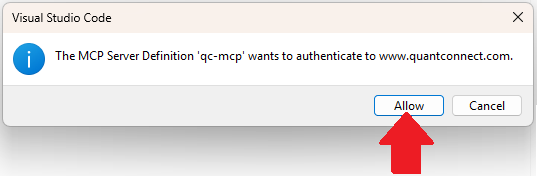
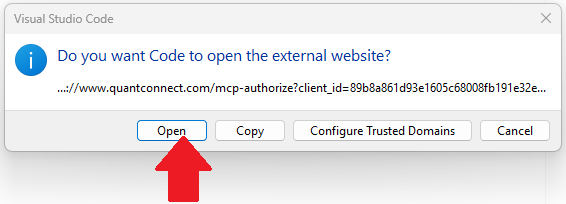

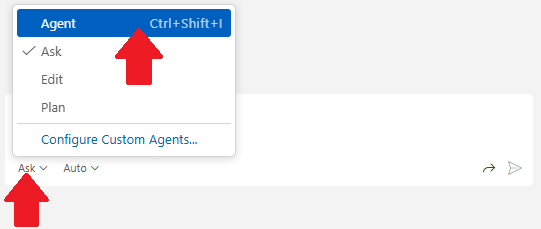
Models
Copilot supports several LLMs that you can use in the Chat panel, including GPT, Claude, and Gemini. To change the model, click the model name at the bottom of the Chat panel and then click the name of the model to use.
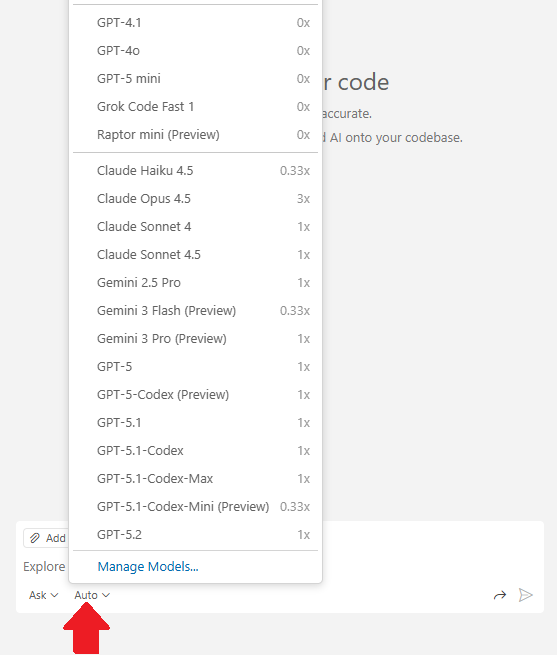
To view all the available models for each Copilot plan, see Models in the GitHub documentation.
Quotas
There are no quotas on the QuantConnect API, but Copilot and the LLMs have some. To view the quotas, see Plans for GitHub Copilot in the GitHub documentation and see the quotas of the model you use.
Troubleshooting
The following sections explain some issues you may encounter and how to resolve them.
Service Outages
The MCP server relies on the QuantConnect API and the client application. To check the status of the QuantConnect API, see our Status page. To check the status of Copilot, see the Microsoft Status page. To check the status of the LLM, see its status page. For example, Claude users can see the Anthropic Status page.
Other Issues
For more information about troubleshooting the MCP server in Local Platform, see Troubleshoot and debug MCP servers in the VS Code documentation.
Examples
The following examples demonstrate the MCP server with Copilot.
Example 1: Hello World
To test the server and client are working and connected, enter the following prompt into Copilot:
> Read the open project.
Copilot should call the read_open_project tool.
Example 2: Strategy Development and Deployment
This example uses Copilot Chat in Local Platform to brainstorm new strategy ideas, edit files, run backtests, and deploy to paper trading.
You can also see our Videos. You can also get in touch with us via Discord.
Did you find this page helpful?
