MCP Server
Windsurf
Introduction
Cascade is an AI coding assistant in the Windsurf Editor that can connect various Large Language Models (LLM) to the QuantConnect MCP Server. This page explains how to set up and use the server in Windsurf.
Getting Started
To connect the Cascade agent in the Windsurf Editor to the QC MCP Server, follow these steps:
- Install and open the Windsurf Editor.
- In the top navigation bar of Windsurf, click .
- In the Search Exensions in Marketplace field, enter QuantConnect.
- Click .
- In the left navigation bar, click the
 QuantConnect icon.
 - In the Initialization Checklist panel, click .
- In the Windsurf window, click .
- On the Code Extension Login page, click .
- In the Select Workspace panel, click .
- In the Pull QuantConnect Organization Workspace window, click the cloud workspace (organization) that you want to pull.
- In the Pull QuantConnect Organization Workspace window, create a directory to serve as the organization workspace and then click .
- In your ~ / .codeium / windsurf / mcp_config.json file, add the following configuration:
- In Windsurf, create a new project or open an existing one.
- In the top navigation menu, click .
- On the Windsurf Settings page, in the Cascade section, click .
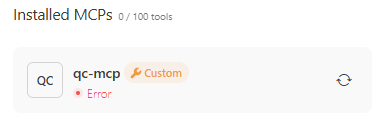
- If the QC MCP Server has an error, click the
 refresh icon to restart it.
 - Press Ctrl+L to open Cascade and begin interacting with the agent.
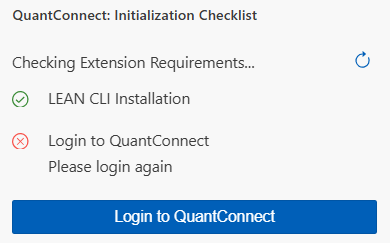
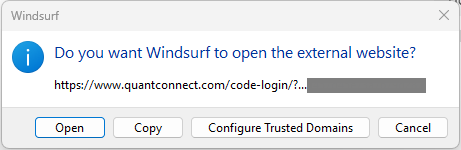
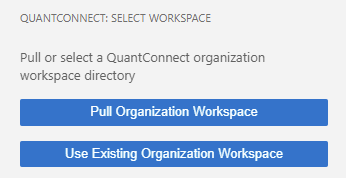

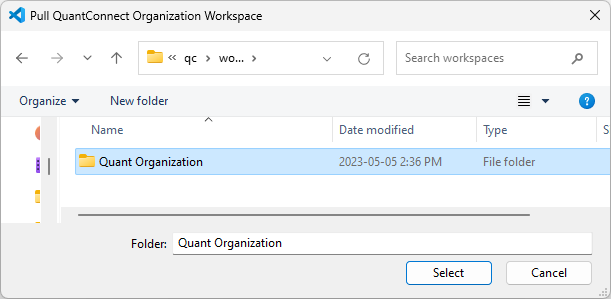
It takes a few minutes to create a new organization workspace directory and populate it with the the initial file structure. After the organization workspace is populated with the initial file structure, it pulls your cloud project files.
{
  "mcpServers": {
    "qc-mcp": {
      "disabled": false,
      "url": "http://localhost:3001/"
    }
  }
}
To backtest and live trade with the local Deployment Target, install Docker Desktop. The installation process depends on if your machine uses Windows, macOS, or Linux.
Models
Windsurf supports several LLMs that you can use in the Cascade panel, including GPT, Claude, and Gemini. To change the model, click the model name at the bottom of the Cascade panel and then click the name of the model to use.
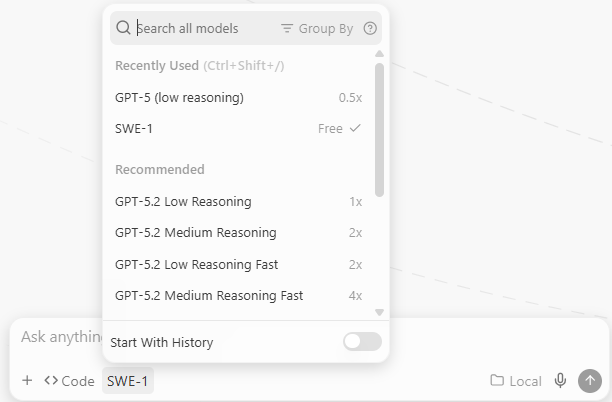
To view all the available models, see Models in the Windsurf documentation.
Quotas
There are no quotas on the QuantConnect API, but Windsurf Cascade and the LLMs have some. To view the quotas, see Plans and Credit Usage in the Windsurf documentation and see the quotas of the model you use.
Troubleshooting
The following sections explain some issues you may encounter and how to resolve them.
No Tools Available
If the agent can't access the tools of the MCP Server, follow these steps to restart the server:
- In the top navigation bar of Windsurf, click .
- On the Windsurf Settings page, in the Cascade section, click .
- If the QC MCP Server has an error, click the refresh icon to restart it.
Service Outages
The MCP server relies on the QuantConnect API and the client application. To check the status of the QuantConnect API, see our Status page. To check the status of Windsurf, see the Windsurf Status page. To check the status of the LLM, see its status page. For example, Claude users can see the Anthropic Status page.
You can also see our Videos. You can also get in touch with us via Discord.
Did you find this page helpful?
