MCP Server
Codex
Introduction
Codex is an AI coding application from OpenAI that can connect GPT models to the QuantConnect MCP Server. This page explains how to set up and use the server with the Codex app.
Getting Started
To connect Codex to the QC MCP Server, follow these steps:
- Install and open the Codex app.
- Sign in with your ChatGPT account.
- In the left navigation bar, click Plugins.
- On the Plugins page, click .
- In the Add custom MCP server form, enter a name for the server, enter the MCP server URL (https://www.quantconnect.com/api/v2/mcp), and then click .
- In the Connect QuantConnect window, click .
- In the Authorize MCP Server form, select the organization you want to connect to and then click .
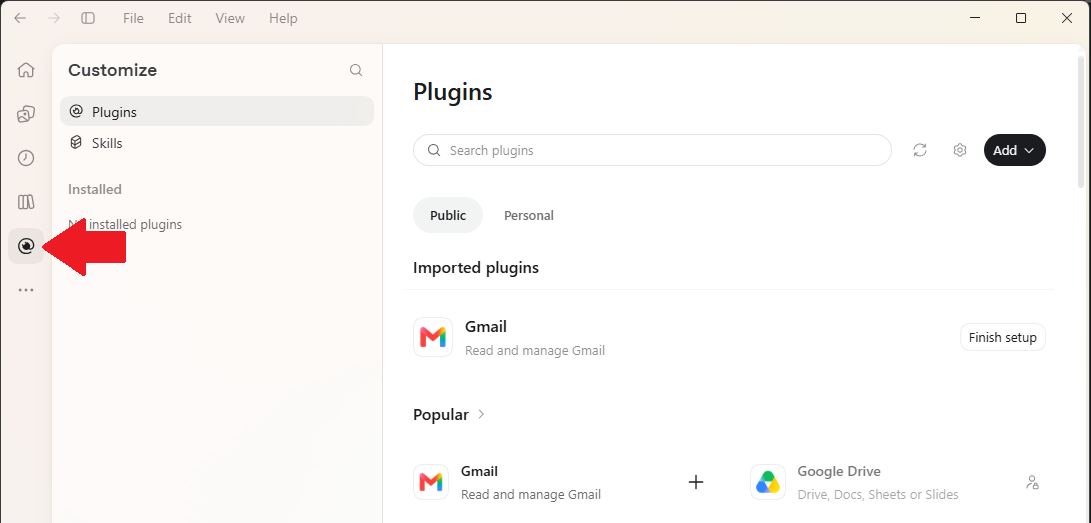
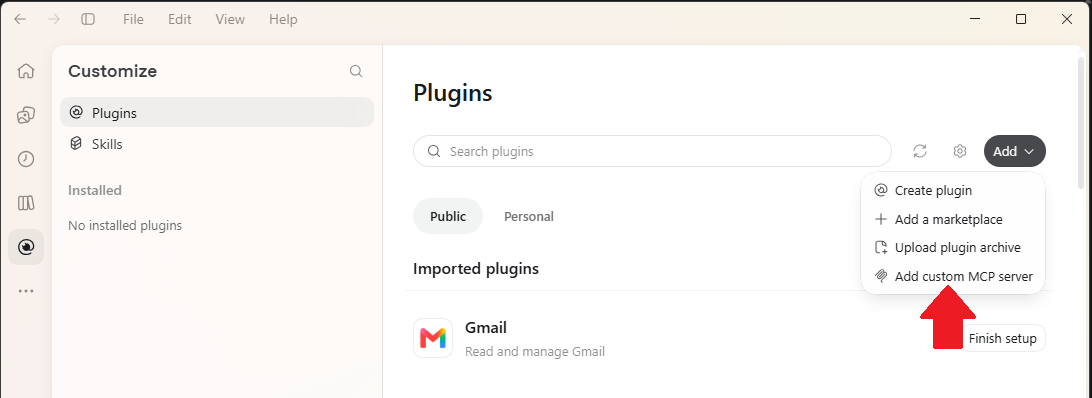
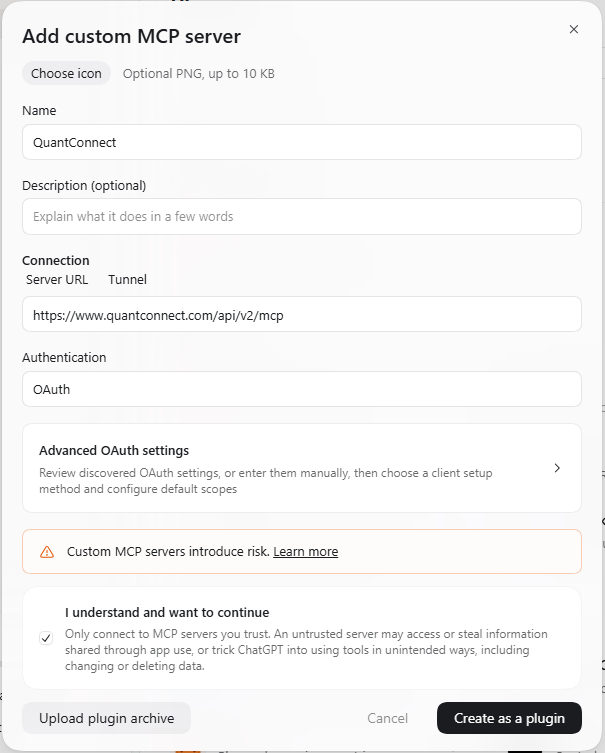
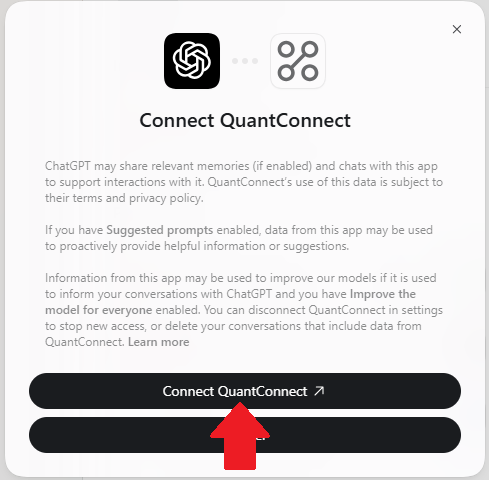
Codex opens a page in your default browser. If you sign into your QuantConnect account with a different browser, update your computer's default browser application and then repeat this step.

Models
Codex supports several GPT models you can use. To change the model, click the model and reasoning control beneath the chat window, and then click the name of the model to use.
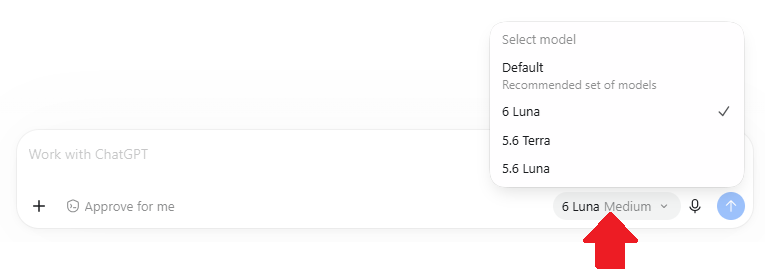
To view all the available models, see Models in the Codex documentation.
Quotas
There are no quotas on the QuantConnect API, but the Codex has some. To view the quotas, see Pricing in the ChatGPT documentation.
Troubleshooting
The following sections explain some issues you may encounter and how to resolve them.
Service Outages
The MCP server relies on the QuantConnect API and the client application. To check the status of the QuantConnect API, see our Status page. To check the status of Codex, see the OpenAI Status page.
You can also see our Videos. You can also get in touch with us via Discord.
Did you find this page helpful?
