MCP Server
Devin Desktop
Introduction
Devin Local is an AI coding assistant in Devin Desktop (formerly Windsurf) that can connect various Large Language Models (LLM) to the QuantConnect MCP Server. This page explains how to set up and use the server in Devin Desktop.
Getting Started
To connect the Devin Local agent in Devin Desktop to the QC MCP Server, follow these steps:
- Install and open Devin Desktop.
- In the top navigation bar of Devin Desktop, click .
- In the Search Exensions in Marketplace field, enter QuantConnect.
- Click .
- In the left navigation bar, click the
 QuantConnect icon.
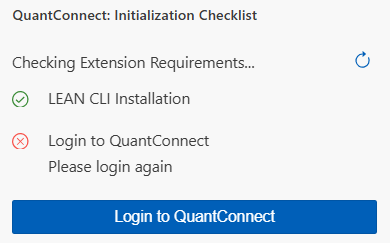
 - In the Initialization Checklist panel, click .
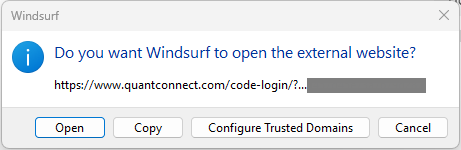
- In the Devin Desktop window, click .
- On the Code Extension Login page, click .
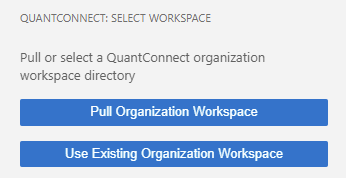
- In the Select Workspace panel, click .
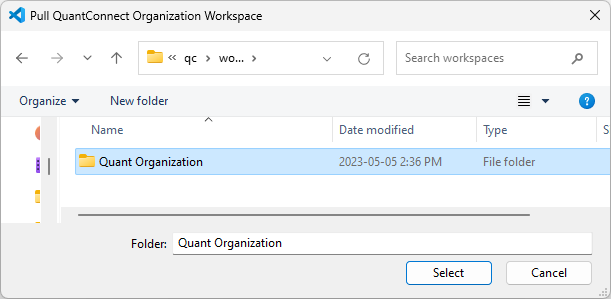
- In the Pull QuantConnect Organization Workspace window, click the cloud workspace (organization) that you want to pull.
- In the Pull QuantConnect Organization Workspace window, create a directory to serve as the organization workspace and then click .
- Press Ctrl+Shift+P to open the Command Palette, enter Devin: Devin MCP Registry, and then press Enter.
- On the Devin Customizations page, click .
- In your ~ / AppData / Roaming / devin / mcp_config.json file, add the following configuration:
- Save and close the ~ / AppData / Roaming / devin / mcp_config.json file.
- On the Devin Customizations page, click the qc-mcp server.
- On the qc-mcp page, click .
- In the Authorize MCP Server form, select the organization you want to connect to and then click .
- In Devin Desktop, create a new project or open an existing one.
- Press Ctrl+L to open Devin Local and begin interacting with the agent.

It takes a few minutes to create a new organization workspace directory and populate it with the the initial file structure. After the organization workspace is populated with the initial file structure, it pulls your cloud project files.
{
  "mcpServers": {
    "qc-mcp": {
      "disabled": false,
      "url": "https://www.quantconnect.com/api/v2/mcp"
    }
  }
}


Devin Desktop should now show all the tools available through the QuantConnect MCP Server.

To backtest and live trade with the local Deployment Target, install Docker Desktop. The installation process depends on if your machine uses Windows, macOS, or Linux.
Models
Devin Desktop supports several LLMs that you can use in the Devin Local panel, including GPT, Claude, and Gemini. To change the model, click the model name at the bottom of the Devin Local panel and then click the name of the model to use.
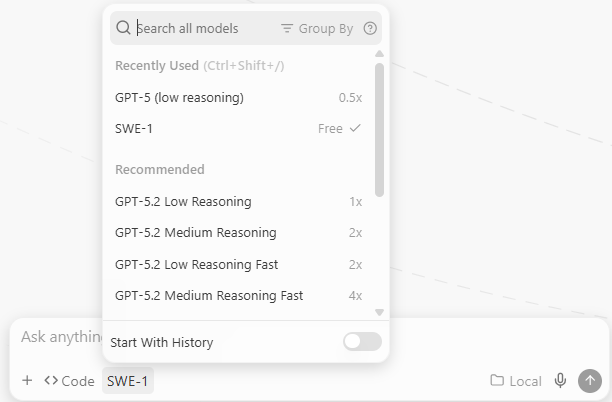
To view all the available models, see AI Models in the Devin documentation.
Quotas
There are no quotas on the QuantConnect API, but Devin Desktop and the LLMs have some. To view the quotas, see Quota-Based Usage in the Devin documentation and see the quotas of the model you use.
Troubleshooting
The following sections explain some issues you may encounter and how to resolve them.
Service Outages
The MCP server relies on the QuantConnect API and the client application. To check the status of the QuantConnect API, see our Status page. To check the status of Devin Desktop, see the Devin Status page. To check the status of the LLM, see its status page. For example, Claude users can see the Anthropic Status page.
Examples
The following examples demonstrate the MCP server with Devin Local in Devin Desktop.
Example 1: Hello World
To test the server and client are working and connected, enter the following prompt into the Devin Local chat:
> Read the open project.
The agent should call the read_open_project tool.
You can also see our Videos. You can also get in touch with us via Discord.
Did you find this page helpful?
