AI Assistance
Tasks
Introduction
A task is a unit of work you assign to an Agent, defining what the agent should do and when to run it. Each execution of a task is a deployment, and a task can have many deployments over its lifetime.
Task Prompts
A task prompt is the description of the specific work the agent should do every time this task runs. It is distinct from the agent's system prompt, which is the standing brief the agent reads regardless of which task it is executing. The system prompt defines the agent's role while the task prompt specifies the work this task performs.
Write the task prompt as a concrete instruction for the work this task should accomplish. For instance, you could include the inputs the agent needs, the specific output you expect, and any context unique to this task that the system prompt does not already cover. Avoid repeating the system prompt since the agent already reads it.
Project Preferences
Project preferences control where the agent does its work for each deployment. Some agents need a QuantConnect project as their workspace (for example, an agent that runs a research notebook or writes algorithm code needs a project to work on). Others can run with no project at all (for example, a news summarizer that reads articles and emails a summary doesn't need a project).
Each task has the following options:
- Create a new project for this task: Create one project the first time the task runs and reuses it on every subsequent deployment.
- Create a new project for each task deployment: Create a fresh project every time the task runs.
- Use an existing project: Attach the task to a project that already exists in your organization.
- No project required: Run the task with no attached project.
Schedule Work
By default, tasks require manual deployment where you open the task and click . Organizations on the Trading Firm or Institution tier can schedule agent tasks to run using the same Scheduled Event system available in QuantConnect algorithms. These schedules include market open, fifteen minutes before close, the first trading day of the month, and more. Since Scheduled Events are aware of the market hours, you can ensure your agents won't run on weekends or US market holidays if that's your intention. This saves you from maintaining a holiday calendar or weekday filter in your prompts.
Notifications
When a task runs, you can see the output in the conversation view. To be notified when a task completes or encounters an error, you can set up some notifications. We offer email, SMS, and Telegram notifications.
Follow these steps to set up Telegram notifications:
- Create a new Telegram group.
- Add a bot to your Telegram group.
- On the Task Configuration page, enter your user Id or group Id.
To create a bot, chat with @BotFather and follow its instructions. If you want to use our bot, the username is @quantconnect_notifications_bot.
Your group Id is in the URL when you open your group chat in the Telegram web interface. For example, the group Id of web.telegram.org/z/#-503016366 is -503016366.
Chained Agents
Chained agents run in a fixed sequence when a task deploys. The first agent in the chain executes the task, and its output is passed to the next agent as input, and so on until the chain ends. Use a chain when the work breaks naturally into stages that each have a different specialist, for example an Ideas Agent feeding a Research Agent feeding a Backtest Agent.
You configure the chain in the Sub-Agent Orchestration section of the assigned agent rather than on the task. Each agent in the chain runs once per deployment in the order you set.
Callable Agents
Callable agents are available to the assigned agent as if they were tools. When the agent is working on a task and decides it needs help from another specialist, it can call that specialist mid-deployment and continue with the result. Unlike chained agents, callable agents only run when the assigned agent chooses to invoke them.
Use callable agents when the path through the work is not known in advance. An agent might call a Research Agent in one deployment and a Live Monitoring Agent in another, depending on what it finds. You configure callable agents in the Sub-Agent Orchestration section of the assigned agent rather than on the task.
View All Tasks
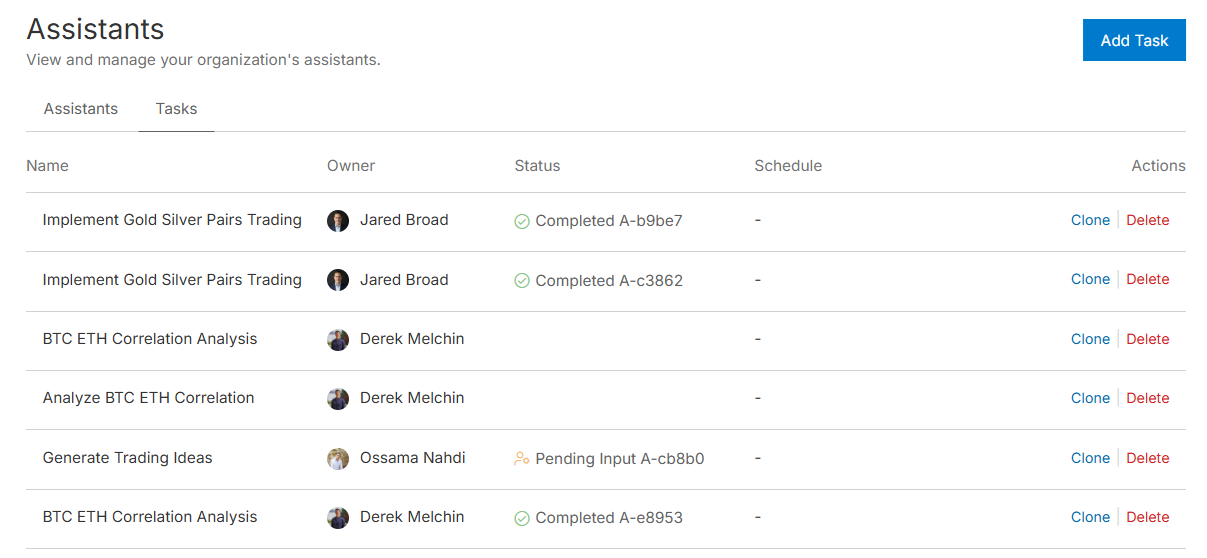
Follow these steps to view all the tasks in your organization:
- Log in to the Algorithm Lab.
- In the left navigation bar, click Organization > Agents.
- Click the Tasks tab.
Add Tasks
Follow these steps to add a task to your organization:
- Log in to the Algorithm Lab.
- In the left navigation bar, click Organization > Agents.
- Click the Tasks tab.
- Click .
- Fill out the Task Configuration form.
- Click .
Update Tasks
Follow these steps to update a task in your organization:
- Log in to the Algorithm Lab.
- In the left navigation bar, click Organization > Agents.
- Click the Tasks tab.
- Click a task.
- Click the
 Edit Task icon.
 - Edit the task configuration.
- Click .
Clone Tasks
Follow these steps to clone a task in your organization:
- Log in to the Algorithm Lab.
- In the left navigation bar, click Organization > Agents.
- Click the Tasks tab.
- In the row of the task you want to clone, click .
Delete Tasks
Follow these steps to delete a task in your organization:
- Log in to the Algorithm Lab.
- In the left navigation bar, click Organization > Agents.
- Click the Tasks tab.
- In the row of the task you want to remove, click .
You can also see our Videos. You can also get in touch with us via Discord.
Did you find this page helpful?
