AI Assistance
Agents
Introduction
Agents are AI specialists inside QuantConnect that handle the distinct stages of building a trading strategy. They source ideas, validate them, code the backtest, and shepherd the result through paper trading. Each one focuses on a single part of the workflow and has the tools to actually do the work rather than just describe it. Talk to an agent directly, or hand the whole job to the Conductor and let it route the work through the team on your behalf.
Agents run on our Agent servers, a harness for quant finance that makes your AI models more productive. The server wraps the LLM you choose—the QuantConnect Meta Agent, OpenAI, Claude, or a self-hosted model—in the tools, data, and project context of quant research, so the model does the work instead of just describing it.
QuantConnect Agents are agentic AI systems. They don't just generate a single response and stop. They take a goal you give them, decide what to do next, call a tool to make it happen, observe what came back, and decide what to do after that. This loop runs until the goal is met or the agent decides it can't proceed.
This recursion is what makes agents useful for real work. A non-agentic model can describe how to fit a statistical model, but an agent can actually load the data, fit the model, read the residuals, and report a verdict. The catch is that an agent is only as good as the system prompt you write, the task you assign it, and the tools you let it use.
Why Use Agent Harness
The Agent Harness is the runtime that turns a language model into a working quant researcher. It gives the model the tools, data, memory, permissions, and supervision it needs to do research unattended and then reports back on what it did. Running your own agent loop is possible, but the harness handles the parts that are hard to get right: keeping the run alive for hours, coordinating several agents, enforcing what each one is allowed to touch, and recovering from provider failures without losing work.
Runs on QuantConnect Infrastructure
Agents run server-side, next to the data, the Object Store, and a dedicated research node, so tool calls stay local instead of crossing the network to a client machine. A run keeps working for hours unattended, including while backtests and optimizations are in progress. The harness saves the full conversation and agent state continuously, so a redeploy resumes exactly where the previous run left off. When a backtest or optimization finishes, the agent wakes automatically rather than polling or waiting on a client to check in. Every step streams live to the QuantConnect web IDE, and a REST API lets you prompt an agent, check its status, stop it, and answer its approval requests from your own tooling.
Multi-Agent Workflows
One deployment can hold a chain of specialist agents or an orchestrator that delegates to a team of sub-agents. Agents message each other through a built-in chat room, and you can run parallel instances of the same agent when the work splits cleanly. Built-in guards prevent stalled handoffs and deadlocks between agents that are waiting on each other. The harness integrates with the Research Pipeline Kanban board, so cards advance automatically as work completes and agents can deploy other agents to pick up the next stage. Persistent memory and a skills library load into every run, and an agent can send email, SMS, or Telegram notifications from within a run.
Built-In Backtest Diagnostics That Feed the AI
Every backtest runs through LEAN's results analyzer, and the findings are handed to the agent as structured feedback with concrete fixes. The analyzer runs during the backtest and again at completion, so the agent can stop a bad run early. Each finding carries the issue, a sample from the logs or orders, an occurrence count, and suggested solutions, including code snippets in the algorithm's own language, Python or C#. Findings are ranked by severity, capped per run, and muted after three repeats so the agent is not spammed. Benchmark comparisons are computed against SPY over the same period.
| Category | Check | What it tells the AI |
|---|---|---|
| Fatal | Time loop timeout | Run was killed for a slow time step or overall runtime, with steps to reduce universe, resolution, or history requests |
| Fatal | Portfolio wiped out | Equity hit zero or below, with data, margin call, and bar gap causes to investigate |
| Strategy | Flat equity curve | Multi-day flat segments, with checks for entry conditions, warm-up gates, empty universe, and cash |
| Strategy | Underperforms benchmark | Sharpe ratio below SPY over the full period |
| Strategy | Not statistically significant | One-sample t-test on excess daily returns fails at the 5 percent level |
| Strategy | Crisis underperformance | Sharpe below benchmark across 17 named stress periods from the DotCom bubble to the AI boom |
| Strategy | Lucky equity curve | Block-bootstrap Monte Carlo places the return above the 90th percentile of simulated paths |
| Strategy | Overfitting risk | More than ten numeric parameters detected, with a table of what counts as a parameter |
| Strategy | Margin under-utilized | Days where the 3-day average margin usage falls below 50 percent |
| Execution | Margin calls | Margin call orders executed, with a warning handler pattern to reduce exposure first |
| Execution | Stale fills | Orders filled on price data an hour or more old, typically daily data traded intraday |
| Execution | Extended hours fills | Fills outside regular hours where slippage is high, with a market-open guard |
| Execution | Take-profit and stop-loss pairs | Both legs filled, or one leg left dangling after the other filled, with OCO handling |
| Execution | Insights for delisted assets | Insights emitted on securities that can no longer trade |
| Performance | Slow execution | Throughput under 40k data points per second, with profiling and optimization steps |
| Performance | Long projected runtime | More than an hour remaining at the recent pace, so the agent can stop and fix |
| Performance | Throughput degradation | Recent speed less than half the initial speed |
| Performance | History request load | Most recent data served by history requests instead of the feed |
| Order errors | Insufficient buying power | Order unaffordable under the margin model, with initial margin and cash buffer examples |
| Order errors | Ordering during warm-up | Orders placed before warm-up finished, with the correct lifecycle hook |
| Order errors | Brokerage refused to submit | 27 broker-specific rules across Alpaca, Binance, Coinbase, Interactive Brokers, RBI, Tradier, Trading Technologies, Wolverine, and the default model |
| Order errors | Brokerage refused to update | Order updates the brokerage model does not support |
| Order errors | Exceeds shortable quantity | Not enough shares to borrow, with a shortable quantity check |
| Order errors | Non-tradable security | Orders on indices, canonical options, or continuous futures |
| Order errors | Zero order quantity | Portfolio weights too small to produce a share, with a quantity check |
| Order errors | Below lot size | Quantity under the security's lot size |
| Order errors | Security price is zero | Order placed before the first bar arrived, with price seeding enabled |
| Order errors | Forex or crypto conversion rate zero | Missing conversion data for the account currency |
| Order errors | Exchange not open | Option exercise or futures market-on-open order while closed |
| Order errors | Market-on-open during regular hours | Order type misuse, with the correct timing guard |
| Order errors | Market-on-close too early | Submitted outside the close buffer, with the buffer setting |
| Order errors | Order quota exceeded | Organization order limit reached, with ways to reduce order count |
| Order errors | Option exercise errors | Exercising European options early, more contracts than held, short positions, or during an underlying split |
Permissions and Human Oversight
Each agent has per-domain read and write permissions across files, backtests, optimizations, research, live trading, storage, data, Kanban, and notifications. Live trading requires an explicit write grant, so an agent can't deploy capital unless you decided it should. In chat mode, file and notebook edits require human approval, with a diff preview before you approve. An agent can pause and ask you a question, and the harness captures your answer even if the run is redeployed in between. External MCP servers such as GitHub mount under the same permission model, with read-only or full access.
Model Layer
The harness works with ten model providers and a gateway that routes across vetted providers with automatic failover. Bring your own API key, or run on the platform key. When an agent gets stuck, the harness temporarily escalates to a stronger model within a budget you control. It manages context automatically by summarizing older history, trimming stale tool output, and keeping the run inside the model's context window. It sanitizes the conversation history so a run survives switching between strict and lenient providers, and it repairs malformed tool calls and recovers from provider quirks without failing the run.
Reliability
Dropped streams and transient tool failures retry from saved state with backoff. When a provider cuts a response off at the output token limit, the run continues automatically. The harness detects and ends wasteful polling loops, capping runaway token spend, and it caps output tokens per turn to bound runaway reasoning.
Observability
Every run reports token usage, duration, model, permissions, retries, escalations, and errors. Fleet-wide reporting tracks reliability, efficiency, and quality by model. The harness is tested continuously against live providers, with fixes shipped daily from production telemetry.
Create System Prompts
An agent has two kinds of prompts. The system prompt is the standing brief, set when you create the agent and read on every deployment regardless of which task triggered it. A task prompt is set on each task the agent runs and describes the specific work that task should do; the agent reads it every time the task deploys. The system prompt defines the agent's role and method, while a task prompt defines what one particular task is trying to do.
Write the system prompt like a job description. List the steps the agent should work through, the tools it should use at each step, and what counts as success. Think of it as teaching the agent how to approach the problem, not just what to do. Spell out the order to gather evidence, what to check at each step, and how to decide when the work is done.
A well-written system prompt names the inputs the agent should look at, the constraints it should respect, the output it should produce, and any caps on how much work to do. Keep the system prompt focused on the agent's role. Put task-specific instructions into each task's prompt instead, and assume the agent has no memory of prior deployments.
To make one system prompt work across project languages, wrap language-specific instructions in <python> and <csharp> tags.
The agent only sees the contents of <python>...</python> when running on a Python project, and only sees <csharp>...</csharp> when running on a C# project.
This keeps the active context free of rules that don't apply to the current run.
<csharp> C# prompt details </csharp>
<python> Python prompt details </python>
Manage Context
Context is everything the model sees when it runs, including the system prompt, the task prompt, results from tool calls, and any data passed in. Every word counts against the model's context budget. Long contexts cost more, slow the model down, and crowd out the actual reasoning it needs to do. The goal is to give the agent the minimum it needs to do the work well.
Keep the system prompt tight. Focus on the parts that change outcomes like the specific steps, the named tools, the hard constraints, and the format of the output. Avoid motivational language, repeated reminders, and paragraphs of background the agent doesn't need.
Keep task prompts focused on the specific work for this run. Include the inputs the agent needs and the constraints unique to this deployment, and don't repeat what is already in the system prompt.
Select Tools
Tools are the capabilities you grant an agent. For example, reading project files, running notebook cells, creating backtests, fetching recent news, and sending notifications are all tools you can enable. Each tool you enable expands what the agent can do and what it can choose between when planning a step.
You enable tools by granting permissions. The following sections describe the permissions and the tools they include. Be selective about which permissions to grant an agent. The model considers every available tool at every step, so an agent with twenty tools is slower and more likely to misroute work than one with the four tools it actually needs. Withholding tools matters as much as enabling them.
When you write the system prompt, name the tools the agent should use at each step. This tells the model which capability you intended for which task and reduces the chance it picks a related-looking tool that isn't the right tool for the job.
Files And Projects
read_open_project- Read the current open project details and files.read_project_nodes- Read the available and selected nodes of a project.update_project- Update project name or description. Provide at least one.initialize_project- Initialize a project from a template.read_project_templates- Reads the best matching project templates based on a provided project description, returning the templates and their file contents.create_compile- Compile and check for syntax and runtime errors. Run after code changes.read_file- Read full file content or a 1-based line range from .py/.cs files.create_file- Create a new .py or .cs file and compile to check for syntax/compilation errors. Returns errors found. File content is limited to the organization plan file size limit; oversized writes are rejected, split the content into smaller files.edit_file- Replace a unique snippet of an existing file, then compile to check for syntax/compilation errors. oldString must match the exact text to replace; to write an entire file use create_file. Returns errors found. File content is limited to the organization plan file size limit; oversized writes are rejected, split the content into smaller files.delete_file- Delete a file under the project root.search_file_content- Search all project files case-insensitively and return matching lines. Results are paginated; use page to fetch subsequent pages.
Backtest
create_backtest- Submits an algorithm for backtesting against historical data. The code is compiled, then the backtest is queued to run asynchronously on a worker. Returns a backtest ID acknowledging the job was accepted. When the run finishes, the system will deliver the completed results to you as a new message. Once you create a backtest, in most cases go to sleep and another system will awake you when the backtest is done. Do not poll to check backtest status.read_backtest- Reads results and performance stats for previously-completed backtests — for example, ones the user references by ID from an earlier session, or ones whose results have already been delivered in this conversation and you need to re-examine or compare. Do NOT use this to check on a backtest you submitted earlier in this conversation but haven't yet received results for. Those arrive automatically as a new message when ready; calling this tool to fetch them early will return empty or stale data and only delays things.list_backtests- List recent backtests with name, date, and stats. Find specific IDs or review past runs.update_backtest- Rename a backtest or update its note. Provide at least name or note. Defaults to latest.delete_backtest- Permanently delete a backtest. Cannot be undone. Clean up old runs.search_backtest_logs- Search backtest logs to monitor performance and behavior during backtesting.
Optimization
create_optimization- Submits an optimization job that runs multiple backtests across parameter combinations to find the best settings. The code is compiled, then the optimization is queued to run asynchronously on workers. Returns an optimization ID acknowledging the job was accepted. When the run finishes, the system will deliver the completed results to you as a new message. Once you create an optimization, in most cases go to sleep and another system will awake you when it is done. Do not poll to check optimization status.read_optimization- Read the natural-language interpretation of a completed optimization. Do NOT use this to check on an optimization you submitted earlier in this conversation but haven't yet received results for. Those arrive automatically as a new message when ready; calling this tool to fetch them early will return empty or stale data and only delays things.list_optimizations- List optimizations with name, status, date. Find IDs or review past runs.abort_optimization- Abort an optimization.delete_optimization- Permanently delete an optimization and results. Cannot be undone.
Research
jupyter_create_cell- Insert a notebook cell in QuantConnect Research. Appends by default. The whole notebook (outputs excluded) is limited to the organization plan file size limit; oversized writes are rejected, keep cells small and move code into project files.jupyter_read_cell- Read one notebook cell by zero-based index.jupyter_update_cell- Replace cell source in QuantConnect Research. The whole notebook (outputs excluded) is limited to the organization plan file size limit; oversized writes are rejected, keep cells small and move code into project files.jupyter_delete_cell- Delete a notebook cell at the specified zero-based index.jupyter_execute_cell- Execute a cell in the QuantConnect Research environment and return outputs.jupyter_create_notebook- Replace the QuantConnect Research notebook with raw JSON. The whole notebook (outputs excluded) is limited to the organization plan file size limit; oversized writes are rejected, keep cells small and move code into project files.jupyter_read_notebook- Read the QuantConnect Research notebook as raw JSON.jupyter_execute_notebook- Execute all QuantConnect Research notebook cells and return combined outputs.
Live
create_live_algorithm- Deploy live to paper trading using QuantConnect brokerage. Compiles first.read_live_algorithm- Read the current live deployment status and results. Use this to monitor live trading performance.stop_live_algorithm- Stop live trading without liquidating. Positions stay open.liquidate_live_algorithm- Close positions at market prices and stop trading. Exit all trades.search_live_logs- Search logs from a live deployment. Defaults to the current deployment. Use this to monitor the performance and behavior.
Object Store
object_store_get- Read data from the Object Store.object_store_set- Writes content to a file, overwriting existing content.
Kanban
create_kanban_card- Create a new card on the Kanban board.get_kanban_cards- Get the cards on the Kanban board.update_kanban_card- Update a card on the Kanban board.delete_kanban_card- Delete a card from the Kanban board.get_kanban_ideas- Get the ideas on the Kanban board.select_kanban_card- Select a card on the Kanban board to work on.deploy_kanban_card- Deploy an agent on a Kanban card.
Notifications
send_email_notification- Send an email notification.send_sms_notification- Send an SMS notification.send_telegram_notification- Send a Telegram notification.
Data
list_datasets- List the names of available QuantConnect datasets. Use get_dataset_details for full information about a specific dataset.get_dataset_details- Get full details for a specific QuantConnect dataset, including description, history, reach, url, and code examples.financial_data_blog_posts- Fetch recent financial blog posts.financial_data_news_articles- Fetch recent financial news articles.fetch_url- Fetch the content of a web page given its URL.
LLM Providers
By default, Agents run using our free QuantConnect Meta Agent. It requires no setup and is the right choice when you want the agent working without bringing your own LLM API key.
Organizations with a paid Agent Node can supply an API key from an LLM provider of their choice. With your own provider, you can select a specific model, configure the reasoning effort, the maximum number of turns the agent takes per deployment, and the tool selection policy. For information about how to get a key from each provider, see Bring Your Own Key.
Structured Outputs
A structured output is a JSON schema that constrains what the agent returns.
When you specify one, the agent produces a response that conforms to the schema instead of free-form prose.
This is the difference between an agent that says "the residuals look stationary, with a p-value around 0.03" and one that returns {"stationary": true, "p_value": 0.03}.
Use a structured output when something downstream consumes the result. Some examples include another agent in a chain, a custom API response handler, or just a human who needs to quickly scan for the key insight. Without a schema, the next step has to parse prose, which fails the moment the wording shifts.
To use one, define the JSON schema in the Output Schema field of the agent configuration. Keep the schema as flat as the next step needs. Nested schemas are valid but add room for the agent to drift from the shape you wanted.
For example, the schema that produces the preceding stationarity output would look like this:
{
  "type": "object",
  "properties": {
    "stationary": {
      "type": "boolean",
      "description": "Whether the residuals pass an ADF stationarity test."
    },
    "p_value": {
      "type": "number",
      "description": "The p-value from the ADF test."
    }
  },
  "required": ["stationary", "p_value"]
}
Research Pipeline
You can assign each agent to a single stage of the Research Pipeline. When a card lands in that stage on the Research Pipeline, the assigned agent automatically deploys and starts working on the project. In the agent configuration, you can choose which stage to assign the agent to, or choose to leave it unassigned and just deploy it manually when you want it to work. The predefined Agents come with their stage already set. For example, the Backtest Agent is assigned to the Backtest stage of the Research Pipeline.
Sub-Agent Orchestration
You can configure an agent to involve other agents in its work. Chained orchestration links agents in a fixed sequence. The first agent runs the task, its output is passed to the next agent as input, and so on until the chain ends. Use a chain when the work breaks naturally into stages that each have a different specialist, for example an Ideas Agent feeding a Research Agent feeding a Backtest Agent. For details on how the sequence executes at deployment time, see Chained Agents.
Callable orchestration exposes other agents as tools the assigned agent can invoke when it needs them. This is similar to a regular tool call, except the "tool" is another agent. Use callable orchestration when the path through the work is not known in advance. An agent might call a Research Agent in one deployment and a Live Monitoring Agent in another, depending on what it finds. For details on how callable agents behave at deployment time, see Callable Agents.
View All Agents
To view all the Agents in your organization, log in to the Algorithm Lab and then, in the left navigation bar, click Organization > Agents.
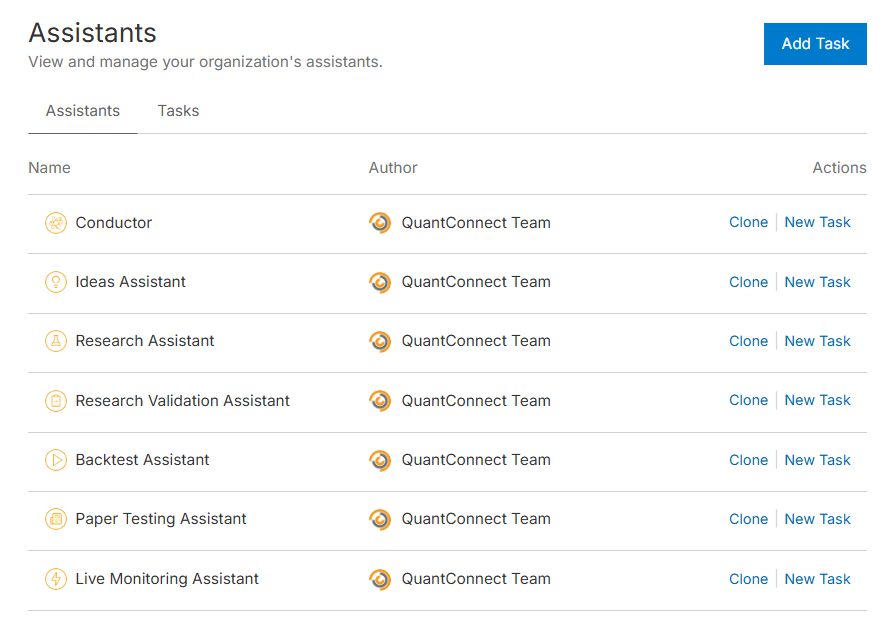
Add Agents
We provide several built-in agents for common community goals. You can customize these to your project goals by creating a custom agent. By default, Agents run on the free QuantConnect Meta Agent. To use a different LLM, set your own API key when you create the agent and configure the reasoning effort, max turns, and tool choice.
Follow these steps to add Agents to your organization:
- Log in to the Algorithm Lab.
- In the left navigation bar, click Organization > Agents.
- Click .
- Fill out the New Agent form.
- Click .
Update Agents
Follow these steps to update the Agents in your organization:
- Log in to the Algorithm Lab.
- In the left navigation bar, click Organization > Agents.
- Click an Agent.
- Edit the Agent configuration.
- Click .
Delete Agents
Follow these steps to delete an Agent in your organization:
- Log in to the Algorithm Lab.
- In the left navigation bar, click Organization > Agents.
- In the row of the Agent that you want to remove, click .
Custom Skills
A custom skill is a reusable set of instructions you add to your organization so your agents apply your own expertise and conventions instead of generic defaults. A skill might capture your risk limits, a preferred indicator workflow, or the house style every strategy should follow. Custom skills live inside the reserved .agent folder of your organization's Object Store. The folder layout looks like this:
.agent/
└── skills/
    ├── risk-limits/
    │   └── skill.md
    └── earnings-screen/
        ├── skill.md
        └── reference.md
The agents don't load every skill up front. An agent scans your available skills and loads the relevant one only when a task calls for it, so a large library of skills never crowds its context. Every agent in your organization can use your custom skills.
Custom skills use the standard Claude skill structure.
For examples, see the skills in the Documentation repository.
The skill.md file starts with a YAML frontmatter block that gives the skill a name and a description, followed by the instructions in Markdown.
The description is how the agent decides when to use the skill, so describe the situations when the agent should use it.
The folder can also hold supporting files that the instructions reference.
For example, the following skill defines risk limits for strategies:
---
name: risk-limits
description: The position-sizing and stop-loss rules every strategy in this organization follows.
---

# Risk Limits

When you build or modify a strategy, enforce these rules:

- Never allocate more than 10% of the portfolio to a single position.
- Attach a stop-loss order at twice the 20-day ATR below the entry price.
- Keep gross leverage at or below 1.5.
Manage these files like any other Object Store data. Create the .agent / skills / subfolders and upload one skill.md per skill. For information on uploading files to the Object Store, see the documentation for the Algorithm Lab, CLI, or API.
Custom Memories
Memory lets an agent remember facts about you and your organization across conversations and projects, so you don't restate the same context every time you start a task. You might record your default data resolution, the benchmark you compare against, or the asset classes your team trades.
Custom memory is a single .agent / memories / memory.md file in your organization's Object Store. It is plain Markdown, so you can write the facts as a simple list or as short notes. For example, memory might look like this:
- Default to hourly resolution for equity strategies unless asked otherwise.
- Benchmark all backtests against SPY.
- The team trades US Equities and Equity Options only.
Agents that use memory load this file automatically at the start of each run, so your facts are always in context without any action from you. When you edit memory.md by hand, the change takes effect the next time an agent runs. Agents also keep the file current on their own, recording new facts they learn as they work, so their memory builds up over time.
Custom Templates
A custom template is your own project scaffold that you and your agents can start new projects from, so a common strategy skeleton is ready to use instead of a blank file. Custom templates live inside the .agent / templates / directory of your organization's Object Store. The directory layout looks like this:
.agent/
└── templates/
    ├── python/
    │   ├── templates.json
    │   └── psar-trailing-stop/
    │       ├── main.py
    │       └── research.ipynb
    └── csharp/
        ├── templates.json
        └── psar-trailing-stop/
            ├── Main.cs
            └── Research.ipynb
Templates are grouped by language in a python or csharp subfolder.
Each language folder holds a templates.json file that registers the templates, plus one subfolder per template that holds the project files.
Each entry in the templates.json file has a name, folder, description, and tags array.
The folder must match the subfolder that holds the project files, and the agent reads the name, description, and tags to help it pick the correct template.
Write asset class tags in PascalCase, matching the SecurityType values (for example, Equity, Future, Option, or Crypto).
Other tags are free-form.
For example, the .agent / templates / python / templates.json file might contain the following JSON:
{
    "templates": [
        {
            "name": "Parabolic SAR Trailing Stop",
            "folder": "psar-trailing-stop",
            "description": "Trades SPY long-only with Parabolic SAR providing dynamic trailing-stop levels and re-entries.",
            "tags": ["Equity", "indicators", "parabolic-sar", "trailing-stop"]
        }
    ]
}
Each template subfolder holds an ordinary project, the same as any project you create. A Python template under .agent / templates / python / has a main.py file. A C# template under .agent / templates / csharp / has a Main.cs file. A template can also include a research notebook (research.ipynb for Python or Research.ipynb for C#) and any other files the project needs. For examples, see the project-templates directory in the Documentation repository.
Manage these files like any other Object Store data. For information on uploading files to the Object Store, see the documentation for the Algorithm Lab, CLI, or API.
Examples
The following example agent configurations demonstrate some common use cases.
Example 1: News Summarizer
This example agent reads the latest oil news once a day and emails you a summary.
System prompt:
Read the financial news from the past 24 hours about crude oil, OPEC, and US energy policy. Filter to the items that materially affect the oil price. Write a summary of three to five bullets, each one sentence, naming the event and why it matters. Send the summary by email.
Tools:
financial_data_news_articlesfinancial_data_web_getsend_email_notification
Schedule: Daily 30 minutes before US market open.
Exmaple 2: ML Trainer
This example agent runs a research notebook daily, evaluates the fit, and saves the model to the Object Store if it passes a quality bar.
System prompt:
Execute the model_training notebook in the current project. Read the fit metrics from the last cell's output. If the R-squared is above 0.4 and the residuals pass an ADF stationarity test, serialize the trained model and save it to the Object Store under the key "latest_model". If the fit fails either check, do not overwrite the existing model and send an email summarizing the failure.
Tools:
jupyter_read_notebookjupyter_execute_notebookjupyter_read_cellobject_store_setsend_email_notification
Schedule: Daily after US market close.
Example 3: Optimization Stability Monitor
This example agent runs a weekly optimization on the project, measures how much the Sharpe ratios vary across the parameter combinations, and sends a Telegram alert only when that variation has grown enough to suggest the strategy is becoming sensitive to its parameters.
System prompt:
Run an optimization on the current project. Read the resulting backtests and compute the standard deviation of their Sharpe ratios across all the parameter combinations. Compare to the previous standard deviation stored in the Object Store under the key "param_stability_std". If the new value is more than 30% above the previous, classify the parameters as less_stable and send a Telegram alert with the structured diagnosis. Otherwise, classify as stable and do not send any notification. Save the new standard deviation to the Object Store either way.
Tools:
create_optimizationread_optimizationobject_store_getobject_store_setsend_telegram_notification
Schedule: Weekly on Sunday at noon.
Output schema:
{
  "type": "object",
  "properties": {
    "verdict": {
      "type": "string",
      "enum": ["stable", "less_stable"]
    },
    "current_sharpe_std": {
      "type": "number",
      "description": "Standard deviation of Sharpe ratios across this week's optimization."
    },
    "previous_sharpe_std": {
      "type": "number",
      "description": "Standard deviation from the previous run, read from the Object Store."
    },
    "recommendation": {
      "type": "string",
      "description": "What action to take, in one sentence."
    }
  },
  "required": ["verdict", "current_sharpe_std", "previous_sharpe_std", "recommendation"]
}
You can also see our Videos. You can also get in touch with us via Discord.
Did you find this page helpful?
