Cloud Platform
Research Pipeline
Introduction
The Research Pipeline is a kanban board that enables you to easily monitor the state of your organization. Think of it as a structured approach to bringing your ideas through the stages of research validation, backtesting, paper trading, and ending with live trading. Each card represents one project in QuantConnect Cloud. Simply add projects to the board, then drag-and-drop them, to move them throughout the various stages of the pipeline as your team completes tasks. To view the board, log in to the Algorithm Lab and then click the Research Pipeline tab.
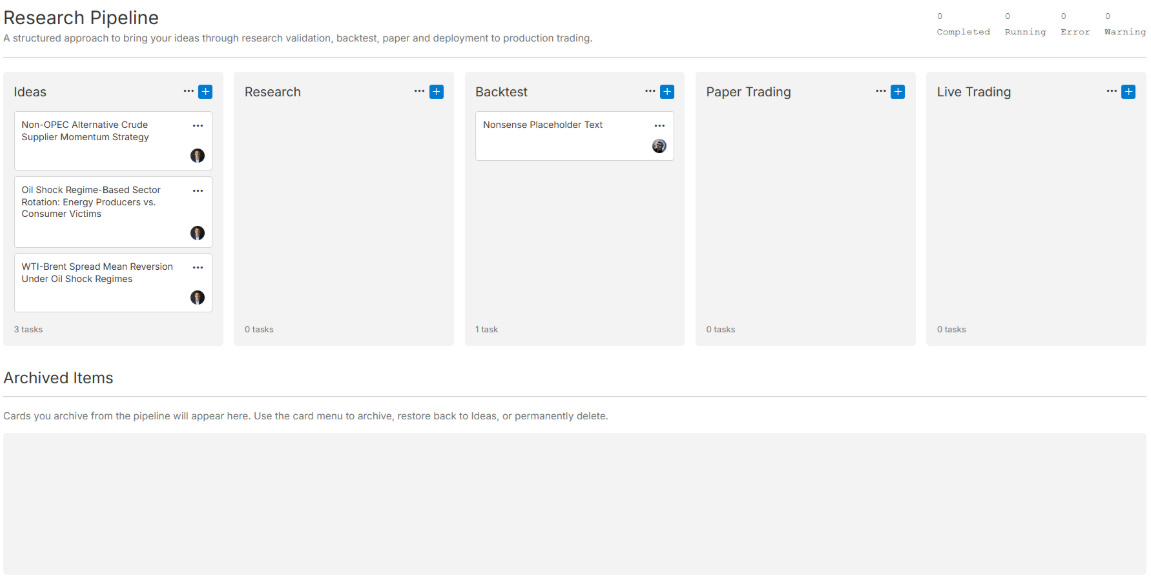
To supercharge your productivity, add some AI agents to your Research Pipeline. We offer a set of highly-skilled AI agents that you can add to your organization. They are each pre-configured to specialize in a particular phase of the Research Pipeline, but you can always define custom agents to fit your organization's needs.
Stage 0: Ideas
The Ideas list on the Research Pipeline should contain cards that describe new trading ideas for your team's researchers to explore.
To add ideas to the list, click the  Add card icon in the top-right corner of the list, enter a description of the trading idea, and then click .
If you need some help generating some trading ideas, an Ideas Agent can add a steady stream of novel trading ideas to your organization's Ideas list. This agent analyzes recent financial news articles and trading blog posts. It then adds a card to the list with a concise description of the strategy, including the underlying logic, the types of assets it would trade, and any specific indicators or datasets it would utilize.
Stage 1: Research
The Research list on the Research Pipeline should contain a card for each project that your research team is currently investigating. During the research stage, the goal is to perform preliminary analysis to assess the viability of the trading idea before committing resources to a formal backtest. This stage helps filter out weak ideas early, refine hypotheses, and identify potential pitfalls.
To add cards to the Research list, drag-and-drop a card from the Ideas list.
Alternatively, click the Add card icon in the top-right corner of the list, enter a description of the trading idea, and then click .
If you need some help researching ideas, add Research and Research Validation Agents to your organization. The Research Agent has access to tools that let it write, read, and execute research notebooks, and it produces a research report in the project that documents its process and findings — typically covering empirical evidence, statistical significance, and a deep analysis of the fundamental reason for the edge of the trading idea.
The Research Validation Agent then pressure-tests that work, using the same notebook tools to check the model's residuals for stationarity, serial correlation, heteroscedasticity, and stability between training and testing windows. Together, they decide whether an idea has earned its place in the backtesting queue or whether it should be sent back before any engineering time is spent on it.
Stage 2: Backtest
The Backtest list on the Research Pipeline should contain a card for each project that your backtest team is currently investigating. During the backtest stage, the goal is to implement the trading idea in an error-free, event-driven algorithm. This stage helps filter out strategies that passed the research phase but have poor performance after running a backtest with realistic reality modeling.
To add cards to the Backtest list, drag-and-drop a card from the Ideas or Research lists.
Alternatively, click the Add card icon in the top-right corner of the list, enter a description of the trading idea, and then click .
If you need some help backtesting ideas, add a Backtest Agent to your organization. This agent has access to tools that enable it to write algorithms, fix coding errors, run backtests, interpret backtest results, and optimize parameters. The output of this agent is an algorithm that's proven to underperform the market or an algorithm that's ready for testing in the paper trading environment.
Stage 3: Paper Trading
The Paper Trading list on the Research Pipeline should contain a card for each project that your team is currently running live with the paper trading brokerage. During the paper trading stage, the goal is to confirm the strategy works as expected in a live environment and diagnose any deviations.
To add cards to the Paper Trading list, drag-and-drop a card from the Backtest list.
If you need some help validating ideas with paper trading, add a Paper Testing Agent to your organization. This agent has access to tools to deploy algorithms, analyze their live performance, and adjust the algorithm logic if necessary. As it runs, it verifies the following questions:
- Does the strategy execute trades exactly as the code dictates?
- Does the paper trading performance match a backtest run over the identical date range?
- Does the out-of-sample performance fall within the statistical envelope of the original backtest?
When any of these questions fail validation, the agent reviews the code, debugs the algorithm, edits the logic, and redeploys the project. If the agent determines the strategy is not ready for live trading with real money, it stops the algorithm and sends you a report.
Stage 4: Live Trading
The Live Trading list on the Research Pipeline should contain a card for each project that your organization is running live with real money. During this final stage, the goal is to ensure the algorithm continues running and to intervene when necessary. To add cards to the Live Trading list, drag-and-drop a card from the Paper Trading list.
If you need some help monitoring your live algorithms, add a Live Monitoring Agent to your organization. This agent has access to tools to deploy algorithms, read their current positions, and scan for material news events that affect the positions. As it runs, it assesses the directional risk of your holdings given breaking news events. When it detects an event that can significantly reduce the value of your holdings, it notifies you so you can act.
Project Archive
The Archived Items section at the bottom of the Research Pipeline should contain a card for each project to which you're no longer allocating resources. These may be ideas that failed the research validation stage, strategies that underperformed in the backtesting stage, or algorithms that lost their edge in live trading.
To add projects to the archive, drag-and-drop a card from one of the stages of the Research Pipeline. You can always recover projects from the archive later on.
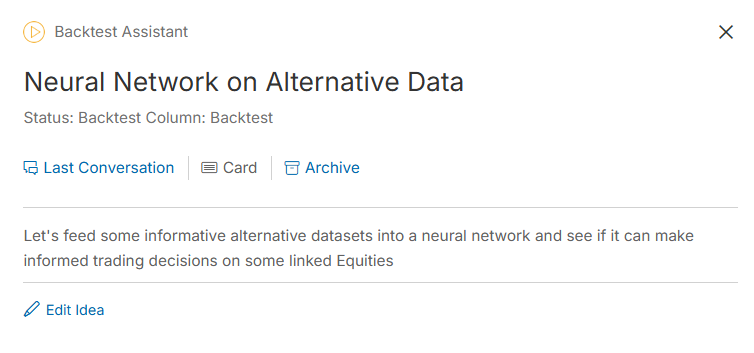
View Deployments
When you assign a card to an Agent and the Agent is currently working on the task, the card displays “Running”.
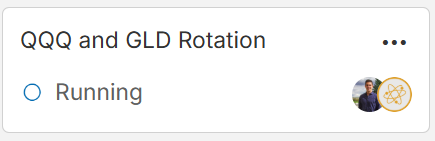
To view the deployment details, click . The deployment view page displays the output of the Agent(s) assigned to the task.
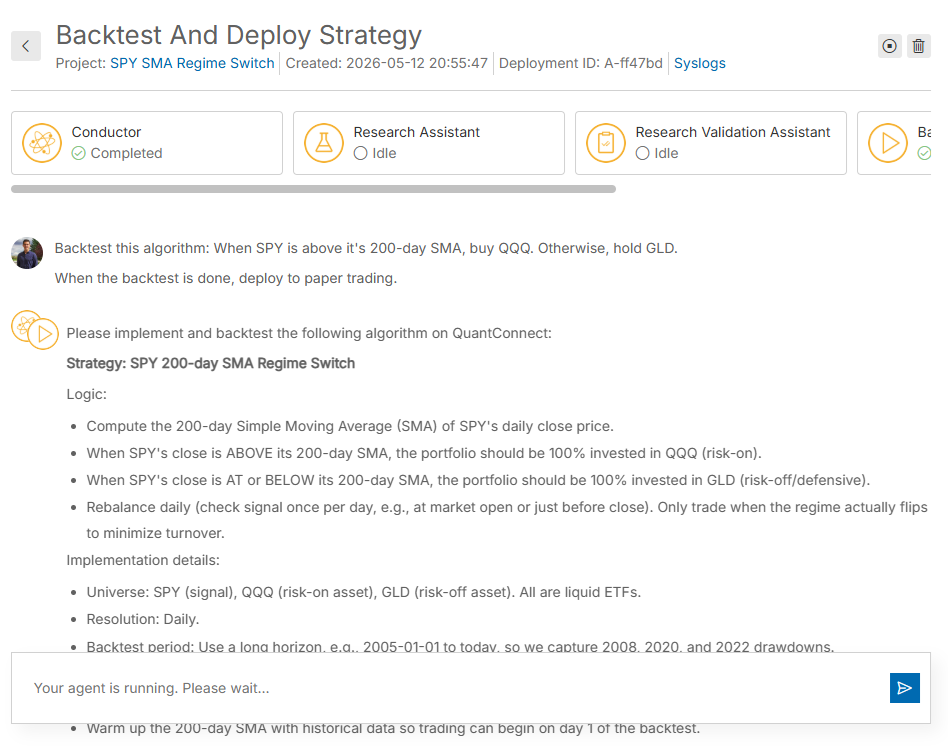
To open the project associated with the task, click the project link at the top of the deployment view.
To interrupt the agent during its run, in the top-right corner of the deployment view, click the  stop icon.
To view all the current and historical tasks, follow these steps:
- Log in to the Algorithm Lab.
- In the left navigation bar, click Organization > Agents.
- Click the Tasks tab.
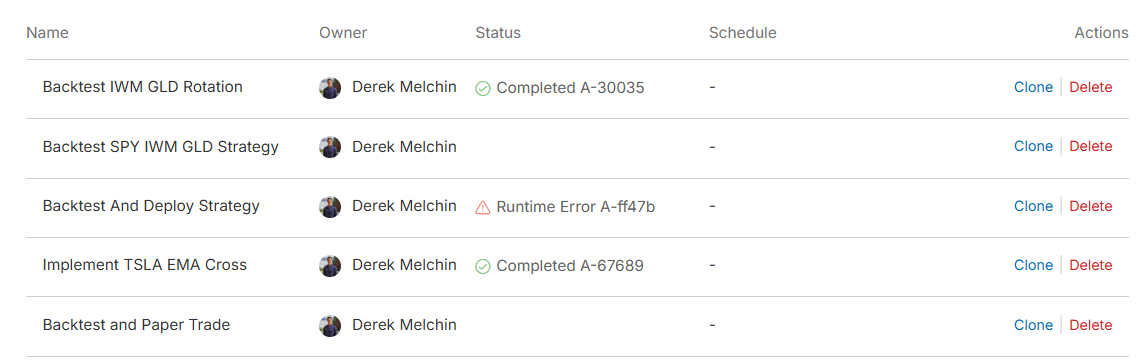
From this view, you can click the Status column to open the deployment view of the task or click to remove the task from the view.
Quotas
Agents have a fair-use quota, but are essentially uncapped. The number of agents you can concurrently run in your organization and the amount of tokens you can use depends on your team's Agent Nodes.
You can also see our Videos. You can also get in touch with us via Discord.
Did you find this page helpful?
