Projects
Files
Introduction
The files in your projects enable you to implement trading algorithms, perform research, and store important information. Python projects start with a main.py and a research.ipynb file. C# projects start with a Main.cs and a Research.ipynb file. Use the main.py or Main.cs file to implement trading algorithms and use the ipynb file to access the Research Environment.
Add Files
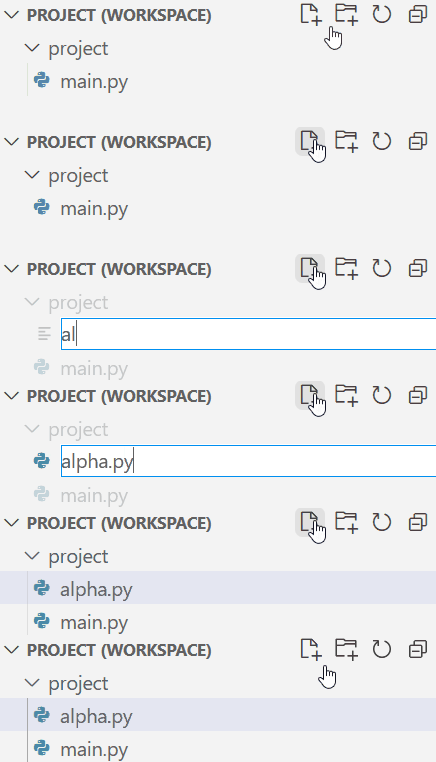
Follow these steps to add a file to a project:
- Open the project.
- In the right navigation menu, click the
 Explorer icon.
 - In the Explorer panel, expand the section.
- Click the
 New File icon.
 - Enter a file name and extension.
- Press Enter.
Add Directories
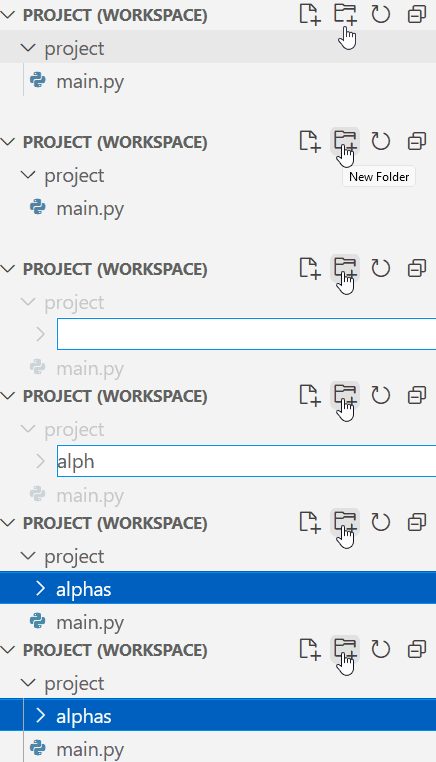
Follow these steps to add a directory to a project:
- Open the project.
- In the right navigation menu, click the Explorer icon.
- In the Explorer panel, expand the section.
- Click the
 New Directory icon.
 - Enter a directory name and then press Enter.
The following directory names are reserved: .ipynb_checkpoints, .idea, .vscode, __pycache__, bin, obj, backtests, live, optimizations, storage, and report.
Open Files
Follow these steps to open a file in a project:
- Open the project.
- In the right navigation menu, click the Explorer icon.
- In the Explorer panel, click the file you want to open.
Rename Files and Directories
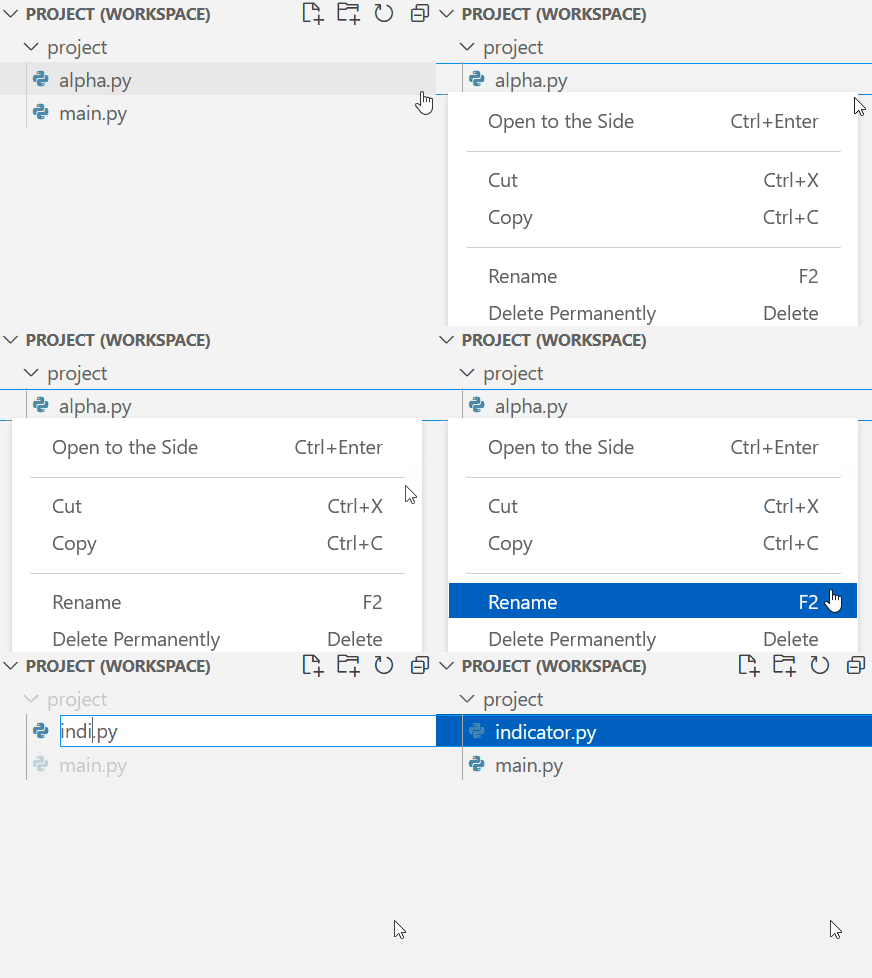
Follow these steps to rename a file or directory in a project:
- Open the project.
- In the right navigation menu, click the Explorer icon.
- In the Explorer panel, right-click the file or directory you want to rename and then click .
- Enter the new name and then press .
The following directory names are reserved: .ipynb_checkpoints, .idea, .vscode, __pycache__, bin, obj, backtests, live, optimizations, storage, and report.
Delete Files and Directories
Follow these steps to delete a file or directory in a project:
- Open the project.
- In the right navigation menu, click the Explorer icon.
- In the Explorer panel, right-click the file or directory you want to delete and then click .
- Click .
Quotas
The maximum number of files and the maximum file size you can have in a project depend on your organization's tier. The following table shows the quotas of each tier:
| Tier | Max Files per Project | Max File Size (KB) |
|---|---|---|
| Free | 25 | 32 |
| Quant Researcher | 50 | 64 |
| Team | 75 | 128 |
| Trading Firm | 100 | 256 |
| Institution | 250 | 256 |
Each library is a project, so it has its own file quota. If a project outgrows its quota, move part of the code into a library.
Libraries are shared, so when you edit one, every project that uses it picks up the change. Add code to a library when it's stable and several projects need it. Keep work in progress and code that only one project uses in the project itself.
You can also see our Videos. You can also get in touch with us via Discord.
Did you find this page helpful?
