Brokerages
Bloomberg
Introduction
QuantConnect enables you to run your algorithms in live mode with real-time market data.

QuantConnect offers two ways to route orders to the Bloomberg™ network. Neither of them is affiliated with or endorsed by Bloomberg™; they are simply add-ons.
- Terminal Link integrates with the Bloomberg™ Server API (SAPI) or Desktop API (DAPI) and routes orders through the Bloomberg™ Execution Management System (EMSX). Add Terminal Link to your organization to access the 1,300+ prime brokerages in the EMSX network.
- Bloomberg™ FIX connects straight to the Bloomberg™ FixNet HUB over the Financial Information eXchange (FIX) protocol. It doesn't use the SAPI, so none of the SAPI setup applies.
Both connections only route orders, so neither of them supplies market data. QuantConnect Cloud supports the Bloomberg™ Server API rather than the Desktop API, so with Terminal Link you can route orders to any of the prime brokerages that Bloomberg™ supports while you leverage the data, server management, and data management from QuantConnect, giving you the best of both worlds. To use Terminal Link, you need to be a member of an organization on the Trading Firm or Institution tier. The Bloomberg™ FIX connection is available to organizations on the Institution tier.
To view how we model these connections, see the Bloomberg brokerage model documentation.
Account Types
Both Bloomberg™ connections route orders to a professional prime brokerage account, so you set the buying power in the wizard when you deploy. Terminal Link supports cash and margin accounts, while the Bloomberg™ FIX connection only supports margin accounts. To set the account type in an algorithm, see the Bloomberg brokerage model documentation.
Create an Account
Both connections require a Bloomberg™ Terminal. To set up Terminal Link, set up the Bloomberg SAPI.
To set up the Bloomberg™ FIX connection, follow these steps:
- Install the Bloomberg™ Terminal.
- Contact Bloomberg Support and ask them to provision a FIX session for order routing.
- Ask Bloomberg Support for the CompIDs of your session.
- Contact the prime brokerage you plan to route to and confirm the FIX tags they require.
Save them somewhere safe. You need them when you deploy live algorithms.
Paper Trading
Neither connection supports paper trading, but you can follow these steps to simulate it with QuantConnect:
- In the
Initializeinitializemethod of your algorithm, set the brokerage model of the connection you use. - Deploy your algorithm with the QuantConnect Paper Trading brokerage.
Data Providers
Neither the Bloomberg™ Server API (SAPI) nor the Bloomberg™ FIX connection provides data. You must use the QuantConnect data provider, a third-party data provider such as Polygon, or a broker that provides data.
Orders
Both Bloomberg™ connections enable you to create and manage Bloomberg™ orders. Terminal Link routes them through the Execution Management System (EMSX), while the Bloomberg™ FIX connection routes them through the FixNet HUB.
Order Types
The following table describes the available order types for each asset class that Terminal Link supports:
| Order Type | Equity | Equity Options | Index Options | Futures |
|---|---|---|---|---|
| Market |  | | | |
| Market on open | | |||
| Limit | | | | |
| Stop market | | | | |
| Stop limit | | | | |
The following table describes the available order types for each asset class that the Bloomberg™ FIX connection supports:
| Order Type | Equity | Equity Options | Index Options | Futures |
|---|---|---|---|---|
| Market | | | | |
| Market on open | | | | |
| Market on close | | | | |
| Limit | | | | |
| Stop market | | | | |
| Stop limit | | | | |
Order Properties
We model custom order properties from the Bloomberg EMSX API. The following table describes the members of the TerminalLinkOrderProperties object that you can set to customize order execution:
| Property | Data Type | Description | Default Value |
|---|---|---|---|
TimeInForcetime_in_force | TimeInForce | A TimeInForce instruction to apply to the order. The following instructions are supported:
| TimeInForce.GoodTilCanceledTimeInForce.GOOD_TIL_CANCELED |
Notesnotes | stringstr | The free form instructions that may be sent to the broker. | |
HandlingInstructionhandling_instruction | stringstr | The instructions for handling the order or route. The values can be preconfigured or a value customized by the broker. | |
CustomNotes1custom_notes_1 | stringstr | Custom user order notes 1. For more information about custom order notes, see Custom Notes & Free Text Fields in the EMSX API documentation | |
CustomNotes2custom_notes_2 | stringstr | Custom user order notes 2. | |
CustomNotes3custom_notes_3 | stringstr | Custom user order notes 3. | |
CustomNotes4custom_notes_4 | stringstr | Custom user order notes 4. | |
CustomNotes5custom_notes_5 | stringstr | Custom user order notes 5. | |
Accountaccount | stringstr | The EMSX account. | |
Brokerbroker | stringstr | The EMSX broker code. | |
LocateBrokerlocate_broker | stringstr |
The EMSX locate broker code that identifies the counterparty the shares are borrowed from for a short equity sale (for example, "BMTB").
Maps to the LocBrkr field on the EMSX trading ticket.
Setting this property (or LocateIdlocate_id) on a short equity sale causes the brokerage to emit EMSX_LOCATE_REQ = "Y" alongside.
| |
LocateIdlocate_id | stringstr | The EMSX locate confirmation/ticket Id that the lending broker returns. Maps to the LocId field on the EMSX trading ticket. | |
IsCfdTradeis_cfd_trade | bool |
A flag that books the order as a contract for differences (CFD) instead of a regular trade.
Maps to the CFD option of the Booking Type drop-down on the EMSX trading ticket and sets the EMSX_CFD_FLAG element.
EMSX applies this flag at the order level, not per security.
A regular trade is the EMSX default, so the brokerage only sends the element when you set this property to trueTrue.
| falseFalse |
Strategystrategy | StrategyParameters | An object that represents the EMSX order strategy details. You must append strategy parameters in the order that the EMSX API expects. The following strategy names are supported: "DMA", "DESK", "VWAP", "TWAP", "FLOAT", "HIDDEN", "VOLUMEINLINE", "CUSTOM", "TAP", "CUSTOM2", "WORKSTRIKE", "TAPNOW", "TIMED", "LIMITTICK", "STRIKE" | |
ExecutionInstructionexecution_instruction | stringstr | The execution instruction field. | |
AutomaticPositionSidesautomatic_position_sides | bool | A flag that determines whether to automatically include the position side in the order direction (buy-to-open, sell-to-close, etc.) instead of the default (buy, sell). | |
PositionSideposition_side | OrderPosition?OrderPosition/NoneType |
An OrderPosition object that specifies the position side in the order direction (buy-to-open, sell-to-close, etc.) instead of the default (buy, sell).
This member has precedence over AutomaticPositionSidesautomatic_position_sides.
| |
Exchangeexchange | Exchange | Defines the exchange name for sending the order to. | |
AdditionalPropertiesadditional_properties | BaseExtendedDictionary<string, string>BaseExtendedDictionary[str, str] | The custom EMSX elements to send with the order. The key is the EMSX element name and the value is the element value. The other order properties take precedence, so an entry that targets an element they already set has no effect. The brokerage skips entries that the EMSX schema doesn't define instead of rejecting the order. | An empty dictionary |
The AdditionalPropertiesadditional_properties dictionary lets you set EMSX elements that the preceding properties don't cover, without waiting for a new LEAN release. IsCfdTradeis_cfd_trade reads and writes the EMSX_CFD_FLAG entry of this dictionary, so setting either of them is equivalent. The following example books the orders as CFD trades and adds the odd lot element, which no dedicated property covers:
The dictionary starts empty and you can't replace it with a plain Python dictionary. To add several elements at once, call the update method with a dictionary. To remove all the elements, call the clear method.
For more information about the format that the Bloomberg EMSX API expects, see Create Order and Route Extended Request in the EMSX API documentation and the createOrderAndRouteWithStrat documentation on the MathWorks website.
We model custom order properties from the Bloomberg™ FIX connection. The BloombergFixOrderProperties class inherits the FixOrderProperties class that every FIX connection shares. The following table describes the members of the BloombergFixOrderProperties object that you can set to customize order execution:
| Property | Data Type | Description | Default Value |
|---|---|---|---|
TimeInForcetime_in_force | TimeInForce | A TimeInForce instruction to apply to the order. | TimeInForce.GoodTilCanceledTimeInForce.GOOD_TIL_CANCELED |
HandleInstructionhandle_instruction | char?str/NoneType | The instruction for order handling on the broker floor. The following values are supported:
| |
Notesnotes | stringstr | The free form text instructions that may be sent to the broker. | |
LocateBrokerlocate_broker | stringstr | The broker that the shares are borrowed from for a short sale. Reads and writes the LocateBroker FIX tag 5700. | |
LocateReqdlocate_reqd | stringstr | Whether a locate is required for the short sale, "Y" or "N". Reads and writes the LocateReqd FIX tag 114. | |
AdditionalPropertiesadditional_properties | BaseExtendedDictionary<string, string>BaseExtendedDictionary[str, str] | The custom FIX tags to send with the order. The key is the FIX tag number and the value is the tag value. | An empty dictionary |
Your FIX counterparty may require tags that the preceding properties don't cover. To send them with your orders, add them to the AdditionalPropertiesadditional_properties dictionary. For example, the following code marks the orders as direct market access (DMA) with tag 9301:
The dictionary starts empty and you can't replace it with a plain Python dictionary. To add several tags at once, call the update method with a dictionary. To remove all the tags, call the clear method.
Get Open Orders
Terminal Link lets you access open orders.
Monitor Fills
Terminal Link allows you to monitor orders as they fill through order events.
Updates
Terminal Link doesn't support order updates, but you can cancel an existing order and then create a new order with the desired arguments. For more information about this workaround, see the Workaround for Brokerages That Don’t Support Updates.
The Bloomberg™ FIX connection does support order updates. The FixNet HUB accepts cancel/replace requests (FIX tag 35=G), so you can update the quantity, limit price, stop price, order type, and time in force of an open order.
Cancellations
Terminal Link enables you to cancel open orders.
Handling Splits
If you're using raw data normalization and you have active orders with a limit, stop, or trigger price in the market for a US Equity when a stock split occurs, the following properties of your orders automatically adjust to reflect the stock split:
- Quantity
- Limit price
- Stop price
- Trigger price
Brokerage-Side Orders
By default, your algorithm doesn't record orders that you submit to your account by third-parties instead of through LEAN. To accept these orders, create a custom brokerage message handler.
Fees
Orders filled with Terminal Link are subject to the fees of the Bloomberg™ Execution Management System and your prime brokerage destination. Orders filled through the Bloomberg™ FIX connection are subject to the fees of your prime brokerage destination. To view how we model these fees, see Fees.
Margin
Set your cash and holdings state in the wizard when you deploy to either Bloomberg™ connection. We use these states to model buying power and margin calls to ensure your algorithm stays within the margin requirements.
Fills
In live trading, LEAN routes your orders to the exchange or prime brokerage you select. The order fills and then routes back to you.
To view how we model Bloomberg™ order fills, see Fills.
Compliance
Bloomberg™ is not affiliated with QuantConnect, nor does it endorse Terminal Link or the Bloomberg™ FIX connection. All users of either integration must hold a Bloomberg™ License to be defined as an "Entitled User".
Terminal Link
A Bloomberg™ SAPI permission and EMSX permission is required to use this brokerage connection, along with a Trading Firm or Institutional subscription on QuantConnect.
The following rules apply:
- The Bloomberg SAPI will only be used for order routing and no data is permitted. The Bloomberg SAPI cannot be used for black-box trading.
The following table shows the activities each of the Bloomberg technologies support:
| Technology | Research | Backtesting | Paper UAT Trading | Live Trading |
|---|---|---|---|---|
| Server API | | | | |
Bloomberg FIX
The following rules apply:
- The FIX session is only used for order routing and no data is permitted.
- Bloomberg™ provisions the FIX session and the CompIDs it accepts, so you can only route orders to the prime brokerage destinations that your session covers.
Set Up SAPI
Terminal Link needs the Bloomberg™ Server API (SAPI). The Bloomberg™ FIX connection doesn't, so skip this section if you deploy with FIX.
The following few sections explain how to download the SAPI, install it on a cloud server, and add firewall rules so it can connect to QuantConnect Cloud.
Download SAPI
Follow these steps to download the SAPI:
- Install the Bloomberg™ Terminal.
- Create a Bloomberg™ Terminal account.
- In the Bloomberg™ Terminal, run
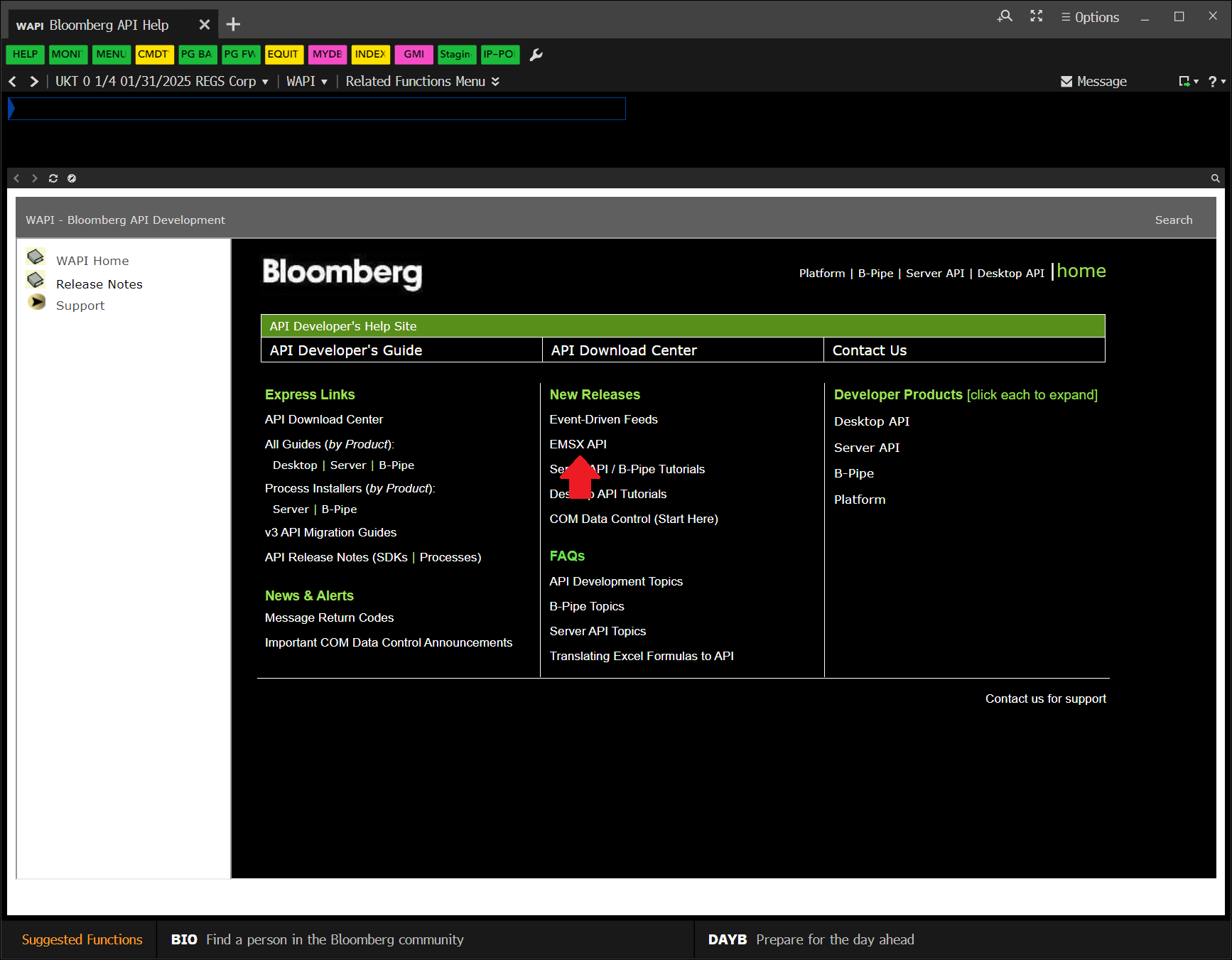
WAPI<GO>. - On the API Developer's Help Site, click .
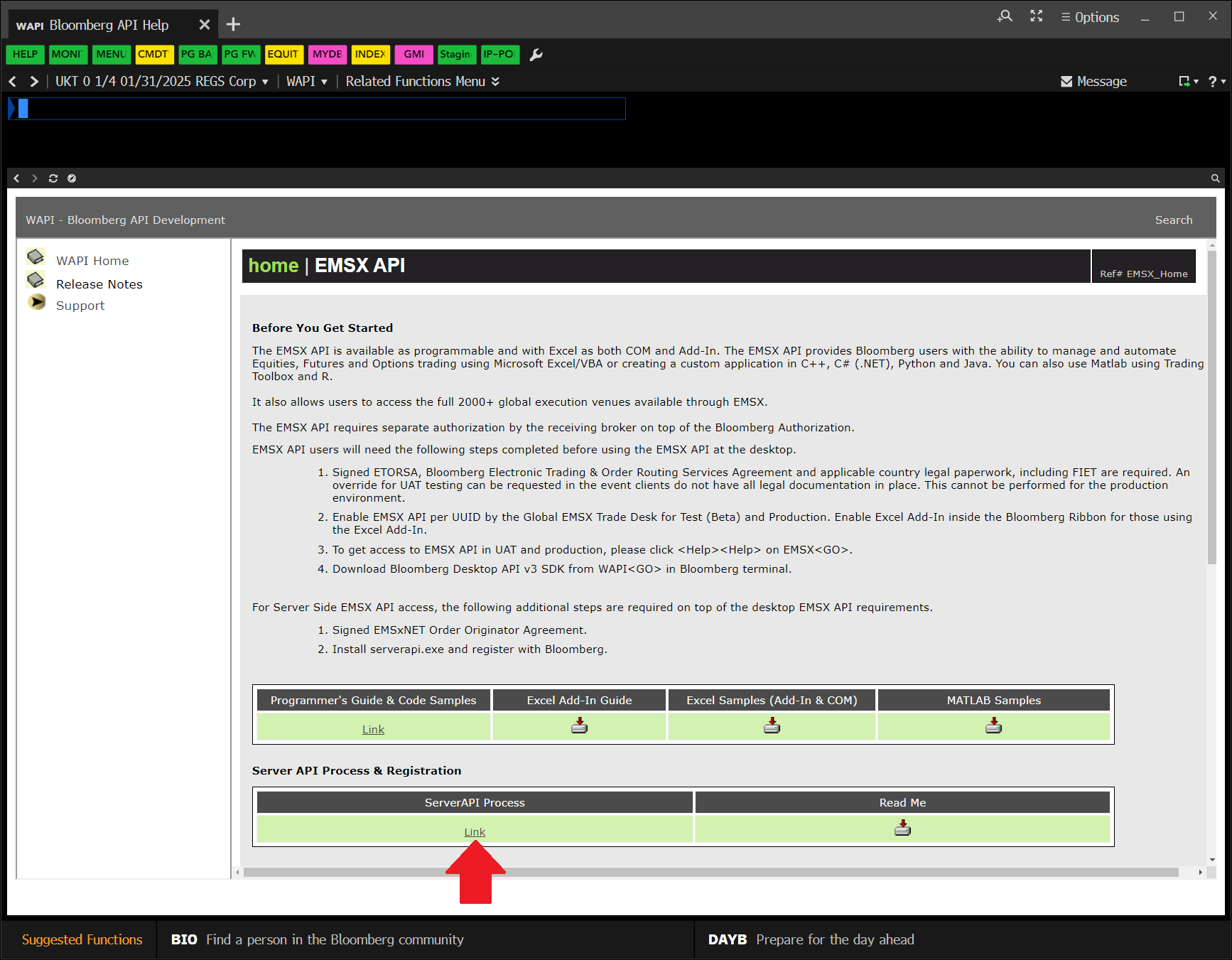
- On the EMSX API page, under the Server API Process section, click .
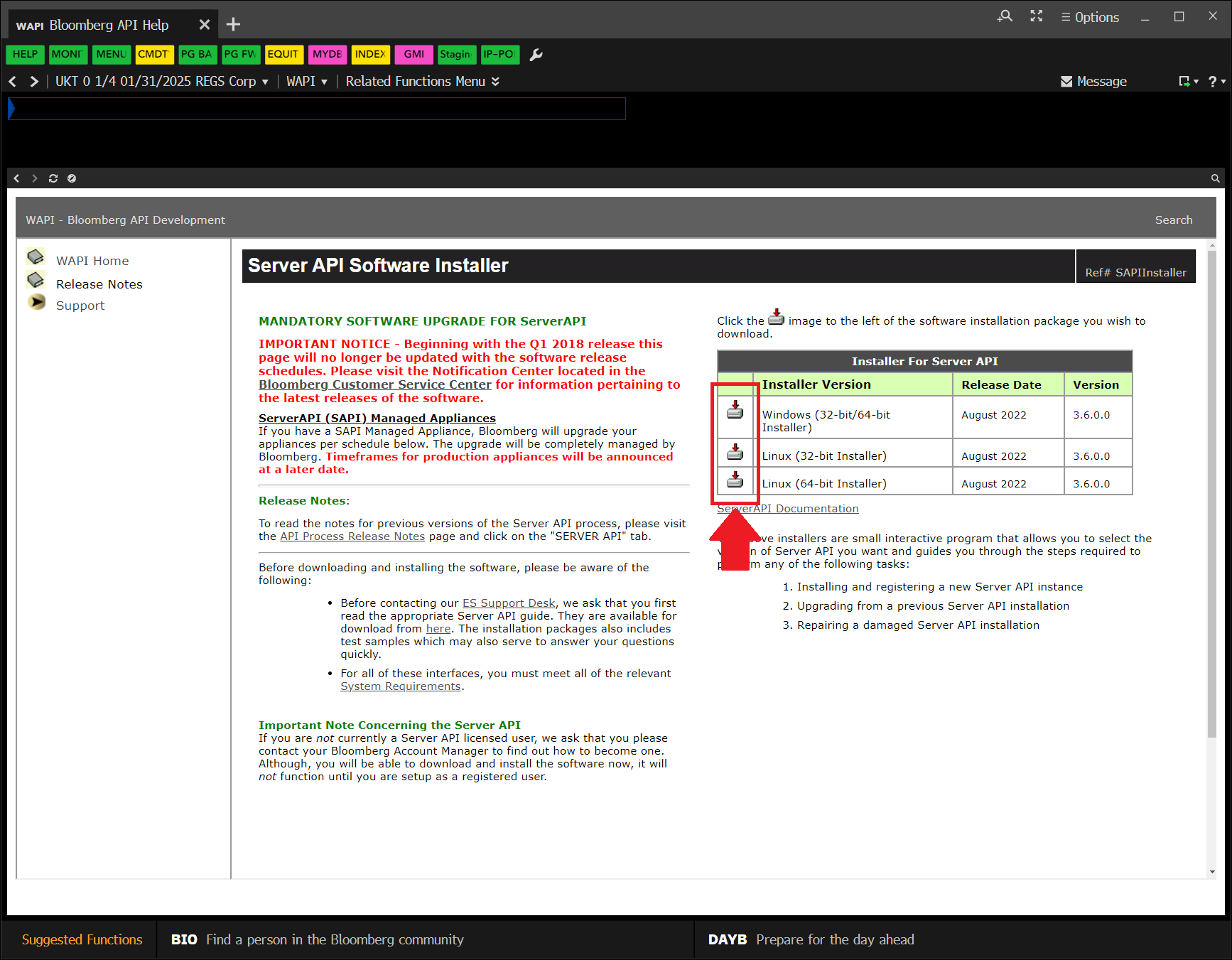
- On the Server API Software Install page, click the correct download icons.
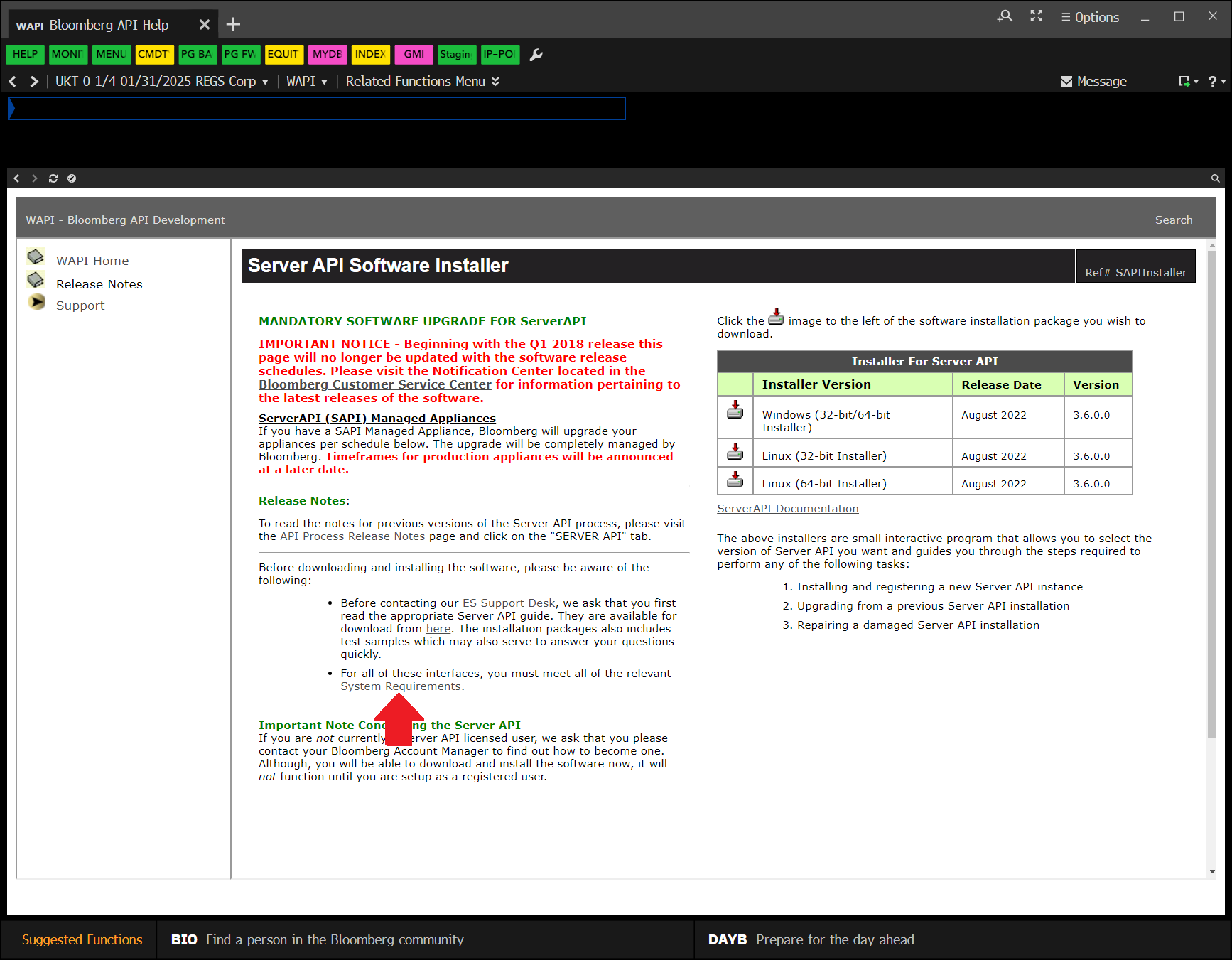
- Click .
Install the SAPI
Follow these steps to install the SAPI:
- Spin up an E12x9 AWS instance or higher that your organization controls.
- Run the SAPI installer on the cloud server.
- Ask Bloomberg™ Support to activate your registration key.
- Start the serverapi program.
For more information about this step, see How to install serverapi.exe in the EMSX API Programmers Guide. At the end of the installion, you get a registration key.
On Windows, the default location is C: \ BLP \ ServerApi \ bin \ serverapi.exe.
Set Up Your Account
Follow these steps to set up your SAPI account:
- Contact Bloomberg Support and ask them to enable the Server Side EMSX API.
- Ask Bloomberg Support for your unique user identifier (UUID).
- Contact the EMSX brokerage you plan to use and give them your UUID.
Save it somewhere safe. You will need it when you deploy live algorithms.
Add Firewall Rules
Follow these steps to configure the firewall rules on the AWS instance so that the SAPI can connect to QuantConnect Cloud:
- Click .
- Enter Windows Defender Firewall with Advanced Security and then press Enter.
- In the left panel, click .
- In the right panel, click .
- Follow the prompts to create a program rule for the serverapi.
- In the Windows Defender Firewall with Advanced Security window, double-click the serverapi row.
- In the serverapi window, click the Scope tab.
- In the Remote IP address section, add the QuantConnect Cloud IP address, 207.182.16.137.
- Click .
- Add the QuantConnect Cloud IP address to the other row in the table that has the serverapi name.
Deploy Live Algorithms
This section explains how to deploy with Terminal Link. To deploy with the Bloomberg™ FIX connection, see Deploy Live Algorithms FIX.
You need to set up the Bloomberg SAPI before you can deploy cloud algorithms with Terminal Link.
You must have an available live trading node for each live trading algorithm you deploy.
Follow these steps to deploy a live algorithm:
- Open the project you want to deploy.
- Click the
 Deploy Live icon.
 - On the Deploy Live page, click the Brokerage field and then click from the drop-down menu.
- Click the Connection Type field and then click from the drop-down menu.
- In the Server Auth Id field, enter your unique user identifier (UUID).
- In the EMSX Broker field, enter the EMSX broker to use.
- In the Server Port field, enter the port where SAPI is listening.
- In the Server Host field, enter the public IP address of the SAPI AWS server.
- In the EMSX Account field, enter the account to which LEAN should route orders.
- In the EMSX Team field, enter the team account to receive events of your team's orders.
- In the OpenFIGI Api Key field, enter your API key.
- Click the Environment field and then click one of the options from the drop-down menu.
- Click the Node field and then click the live trading node that you want to use from the drop-down menu.
- (Optional) In the Data Provider section, click and change the data provider or add additional providers.
- If your brokerage account has existing cash holdings, follow these steps (see video):
- In the Algorithm Cash State section, click .
- Click .
- Enter the currency ticker (for example, USD or CAD) and a quantity.
- If your brokerage account has existing position holdings, follow these steps (see video):
- In the Algorithm Holdings State section, click .
- Click .
- Enter the symbol ID, symbol, quantity, and average price.
- (Optional) Set up notifications.
- Configure the Automatically restart algorithm setting.
- Click .
The UUID is a unique integer identifier that's assigned to each Bloomberg Anywhere user. If you don't know your UUID, contact Bloomberg.
The default port is 8194.
The default value is empty, which means LEAN disregards these notifications.
By enabling automatic restarts, the algorithm will use best efforts to restart the algorithm if it fails due to a runtime error. This can help improve the algorithm's resilience to temporary outages such as a brokerage API disconnection.
The deployment process can take up to 5 minutes. When the algorithm deploys, the live results page displays. If you know your brokerage positions before you deployed, you can verify they have been loaded properly by checking your equity value in the runtime statistics, your cashbook holdings, and your position holdings.
Deploy Live Algorithms FIX
This section explains how to deploy with the Bloomberg™ FIX connection. To deploy with Terminal Link, see Deploy Live Algorithms.
You must have an available live trading node for each live trading algorithm you deploy.
Follow these steps to deploy a live algorithm:
- Open the project you want to deploy.
- Click the Deploy Live icon.
- On the Deploy Live page, click the Brokerage field and then click from the drop-down menu.
- In the Sender Sub ID field, enter your QuantConnect user Id.
- In the On Behalf Of Comp ID field, enter the CompID that identifies your trading firm.
- In the Deliver To Comp ID field, enter the CompID of the prime brokerage that receives your orders.
- Click the Environment field and then click from the drop-down menu.
- Click the Node field and then click the live trading node that you want to use from the drop-down menu.
- (Optional) In the Data Provider section, click and change the data provider or add additional providers.
- If your brokerage account has existing cash holdings, follow these steps (see video):
- In the Algorithm Cash State section, click .
- Click .
- Enter the currency ticker (for example, USD or CAD) and a quantity.
- If your brokerage account has existing position holdings, follow these steps (see video):
- In the Algorithm Holdings State section, click .
- Click .
- Enter the symbol ID, symbol, quantity, and average price.
- (Optional) Set up notifications.
- Configure the Automatically restart algorithm setting.
- Click .
The connection sends this value as FIX tag 50 so Bloomberg™ can map the orders to you. To get your QuantConnect user Id, request an API token. We email you your user Id and API token.
Bloomberg™ assigns this value when they provision your FIX session. It's FIX tag 115.
It's FIX tag 128. Contact your prime brokerage if you don't know their CompID.
By enabling automatic restarts, the algorithm will use best efforts to restart the algorithm if it fails due to a runtime error. This can help improve the algorithm's resilience to temporary outages such as a brokerage API disconnection.
The deployment process can take up to 5 minutes. When the algorithm deploys, the live results page displays. If you know your brokerage positions before you deployed, you can verify they have been loaded properly by checking your equity value in the runtime statistics, your cashbook holdings, and your position holdings.
You can also see our Videos. You can also get in touch with us via Discord.
Did you find this page helpful?
