Cloud Platform
Object Store
Introduction
The Object Store is an organization-specific key-value storage location to save and retrieve data in QuantConnect's cache. Similar to a dictionary or hash table, a key-value store is a storage system that saves and retrieves objects by using keys. A key is a unique string that is associated with a single record in the key-value store and a value is an object being stored. Some common use cases of the Object Store include the following:
- Transporting data between the backtesting environment and the research environment.
- Training machine learning models in the research environment before deploying them to live trading.
The Object Store is shared across the entire organization. Using the same key, you can access data across all projects in an organization.
The Object Store is available to paid organizations. In Free organizations, algorithms that try to save data log "The current user does not have permission to write to the organization Object Store". To use the Object Store, upgrade your organization to a paid tier.
View Storage
The Object Store page shows all the data your organization has in the Object Store. To view the page, log in to the Algorithm Lab and then, in the left navigation bar, click Organization > Object Store.
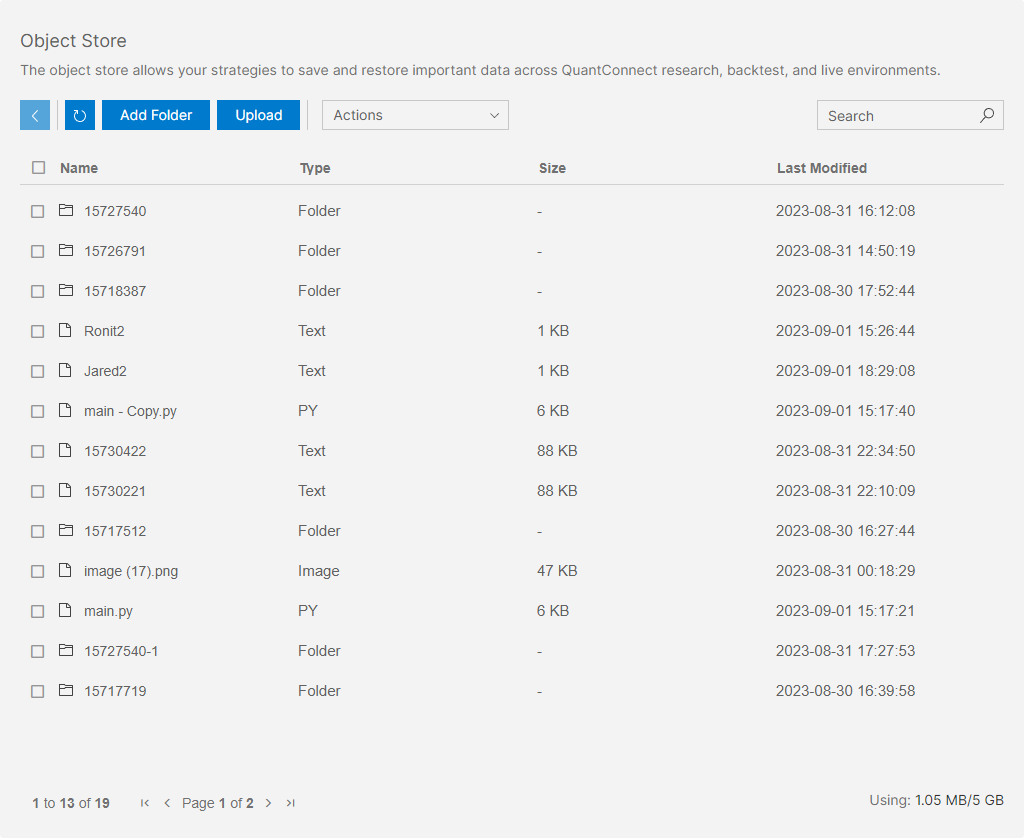
The displayed usage takes some time (about one hour) to reflect the actual value after you add or remove files.
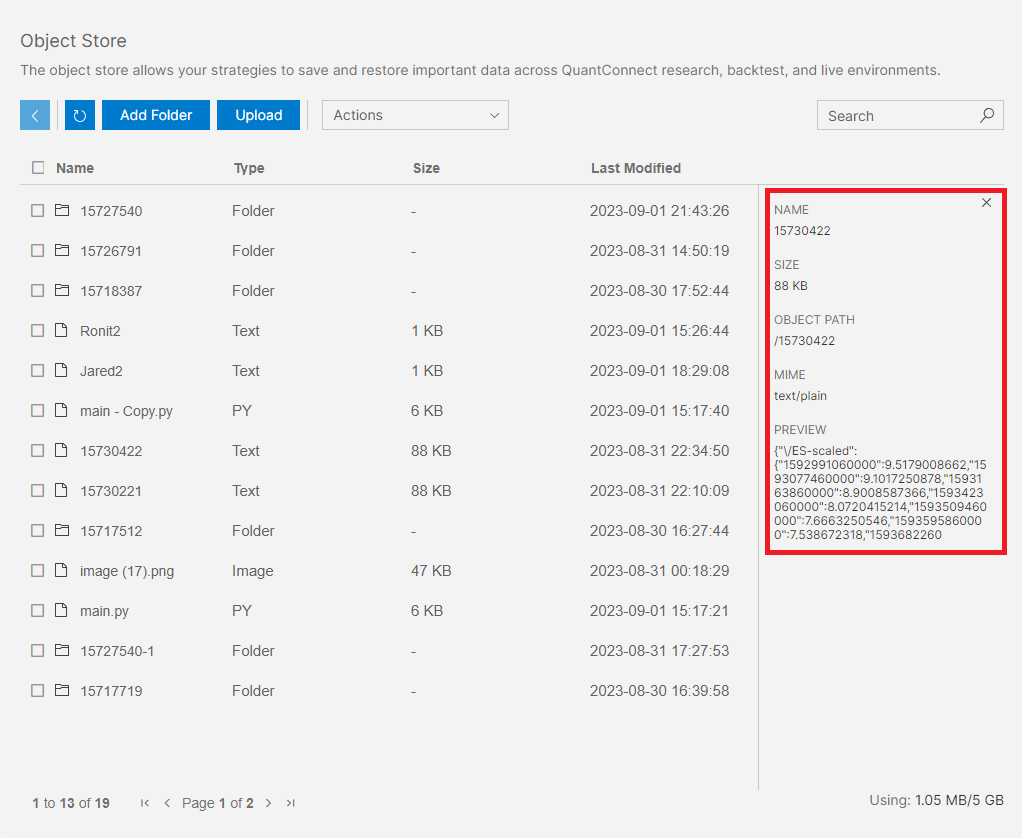
To view the metadata of a file (including it's path, size, and a content preview), click one of the files in the table.
Upload Files
Follow these steps to upload files to the Object Store:
- Open the Object Store page.
- Navigate to the directory in the Object Store where you want to upload files.
- Click .
- Drag and drop the files you want to upload.
Alternatively, you can add data to the Object Store in an algorithm or notebook.
Download Files
Downloading files from the Object Store is only available to Institution tier organizations that have signed QuantConnect's derived data agreement. It is not available on the Free, Quant Researcher, Team, or Trading Firm tiers, and adding storage doesn't change that.
The restriction applies to every file in the Object Store, including files you upload and files your algorithms generate. The Object Store is a single shared store, so the platform can't distinguish your own files from data derived from licensed datasets, and there is no per-file or per-organization exception. Keeping the data in the cloud is what lets QuantConnect offer licensed data at a fraction of its direct cost. Even permissioned organizations can only download derived data such as machine learning models and signal files. Raw price and alternative data can never be downloaded.
If your organization isn't permissioned, the action on the Object Store page is unavailable, and the API and CLI return Organization does not have derivative export enabled. Use the data in the cloud instead:
- Read the file in the Research Environment or in a backtest and do the analysis there. For a full walkthrough, see Example for Logging.
- For values a backtest produces, plot them and use Download Results, or log them within your log quota.
- Project source files don't need the Object Store. Pull them with lean cloud pull.
If you represent a fund or company and are interested in the Institution tier but unsure if it's right for you, contact us to schedule a demo with QuantConnect to learn more.
If your organization is permissioned, follow these steps to download files and directories from the Object Store:
- Open the Object Store page.
- Navigate to the directory in the Object Store where you want to download files and directories.
- Select the file(s) and directory(ies) to download.
- Click .
- Wait while QuantConnect processes the request.
- Click the link that appears.
Storage Sizes
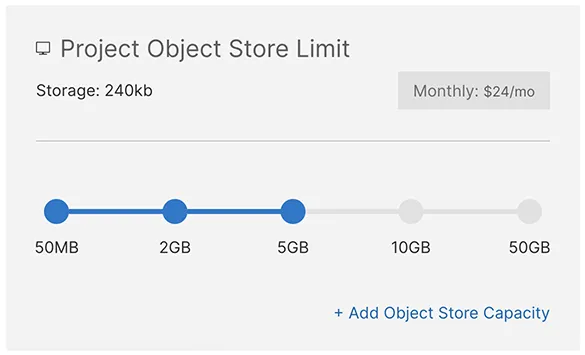
The Object Store is available to paid organizations. Paid organizations get 50 MB of free storage in the Object Store and can subscribe to more storage space. Storage subscriptions add capacity only; they don't enable downloading files. The following table shows the cost of the supported storage sizes:
| Storage Size (GB) | Storage Files (-) | Monthly Cost ($) |
|---|---|---|
| 0.05 | 1,000 | 0 |
| 2 | 20,000 | 12 |
| 5 | 50,000 | 24 |
| 10 | 100,000 | 60 |
| 50 | 500,000 | 120 |
Delete Storage
Follow these steps to delete storage from the Object Store:
- Open the Object Store page.
- Navigate to the directory in the Object Store where you want to delete files.
- Click the check box next to the files you want to delete.
- Click and then click from the drop-down menu.
- Click .
Alternatively, you can delete storage in an algorithm or notebook.
Edit Storage Plan
You need storage billing permissions and a paid organization to edit the size of the organization's Object Store.
Follow these steps to edit the amount of storage available in your organization's Object Store:
- Log in to the Algorithm Lab.
- In the left navigation bar, click Organization > Resources.
- On the Resources page, scroll down to the Storage Resources and then click .
- On the Pricing page, select a storage plan.
- Click .
Research to Live Considerations
When you deploy a live algorithm, you can access the data within minutes of modifying the Object Store. Ensure your algorithm is able to handle a changing dataset.
The live environment's access to the Object Store is much slower than in research and backtesting. Limit the individual objects to less than 50 MB to prevent live trading access issues.
Usage by Project
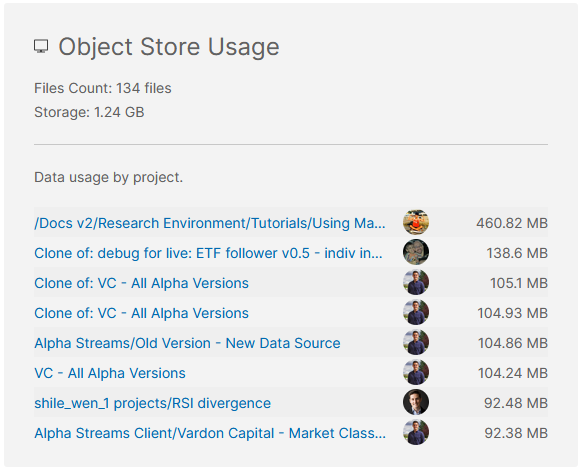
The Resources page shows the total storage used in your organization and the storage used by individual projects so that you can easily manage your storage space. To view the page, log in to the Algorithm Lab and then, in the left navigation bar, click Organization > Resources.
Special Folders
Your organization's Object Store includes a reserved .agent folder that the QuantConnect AI agents read. It holds the custom skills, memories, and templates you define for your organization, which let the agents apply your own expertise, remember your preferences, and start new projects from your own scaffolds.
The .agent folder contains the following subfolders:
| Subfolder | Purpose |
|---|---|
| skills | Reusable instructions and conventions the agents apply. |
| memories | Facts the agents remember across conversations. |
| templates | Your own project scaffolds for the agents to initialize for new projects. |
These files are shared across your organization. To add or update them, see Upload Files.
You can also see our Videos. You can also get in touch with us via Discord.
Did you find this page helpful?
